
Outlook is not the biggest email client on the planet, but testing emails in Outlook probably consumes more developer time than every other client combined. In Litmus’ global tracking, Outlook desktop sits around 4% of measured opens – not dominant – and yet if you send to B2B audiences (Windows desktops, corporate tenants, “please reply-all” culture), your own numbers can be way uglier than that. This guide is the full workflow: why Outlook behaves like a different species, which Outlook email rendering issues are worth hunting first, how to test email in Outlook without burning a week, which Outlook email testing tools are worth paying for, and how the new Outlook for Windows rollout changes what “done testing” even means in 2026.
- Why testing emails in outlook is still the hardest part of the job
- Understanding what you’re testing when testing emails in Outlook – the outlook ecosystem in 2026
- The two outlooks that currently exist
- Outlook variants beyond the desktop app
- What the word rendering engine actually does wrong
- The testing workflow – how to approach testing emails in Outlook properly
- Start with your audience data – not every Outlook version matters equally
- Build your Outlook test matrix
- Using Litmus for Outlook testing – practical workflow
- Email on Acid as an alternative or complement
- Testing emails in outlook – the most common rendering problems and how to test for each
- The random white line problem
- Background images not loading
- Padding and margin rendering inconsistencies
- Buttons not rendering as designed
- Dark mode in outlook – the specific testing challenge
- DPI scaling and font rendering issues
- Conditional comments, vml, and mso code – the layer most testing workflows miss when testing emails in outlook
- What conditional comments do – and where testing breaks down
- Ghost tables and the hybrid coding approach
- Test after each code change – not just at the end
- Testing emails in outlook during the 2026 outlook transition – what it means for your workflow
- What changes for testing as new outlook grows
- What does not go away
- Testing during the transition period – right now
- What to audit in existing templates in 2026
- Testing emails in Outlook – a repeatable pre-send checklist
- Before writing any code
- During development – test at each stage, not just the end
- Pre-send final checks
- Post-October 2026 additions to the checklist
- Tools for testing emails in Outlook – honest opinions
- Litmus
- Email on Acid
- Free and lower-cost options
- What testing emails in Outlook looks like in 2027 and beyond
- Conclusion
- Quiz to test your knowledge
- Footnotes
Why testing emails in outlook is still the hardest part of the job

The reason testing emails in Outlook is miserable isn’t some vague “rendering differences” story. It is specific: classic Outlook for Windows (the desktop app a lot of orgs still live in) uses Microsoft Word as its HTML rendering engine – a Word-based engine Outlook adopted back in 2007 – which means you’re not dealing with a browser, you’re dealing with Word’s idea of HTML. Flexbox? Nope. Modern CSS layouts? Nope. CSS background images the normal way? Not really – you end up in VML land or you fall back to flat color. Padding can behave inconsistently, and table layouts can sprout hairline gaps that only show up under certain Windows DPI / scaling settings, which is how you end up losing an afternoon to a line that is one pixel tall and pure spite.
This guide stays practical: how to figure out which Outlook you’re actually testing for (because there are several, and they do not behave the same), what the common Outlook email rendering issues look like in real life, how to test for each one without guessing, where Litmus Outlook testing and Email on Acid Outlook previews help – and where they don’t – and what to do with the messy 2026 timeline as Microsoft moves more users toward the new Outlook for Windows.
Understanding what you’re testing when testing emails in Outlook – the outlook ecosystem in 2026
The two outlooks that currently exist
Here’s the thing that trips up a lot of people: “Outlook” isn’t one client anymore. The two main Windows experiences behave so differently that treating them as one checkbox in your QA list is basically self-sabotage.
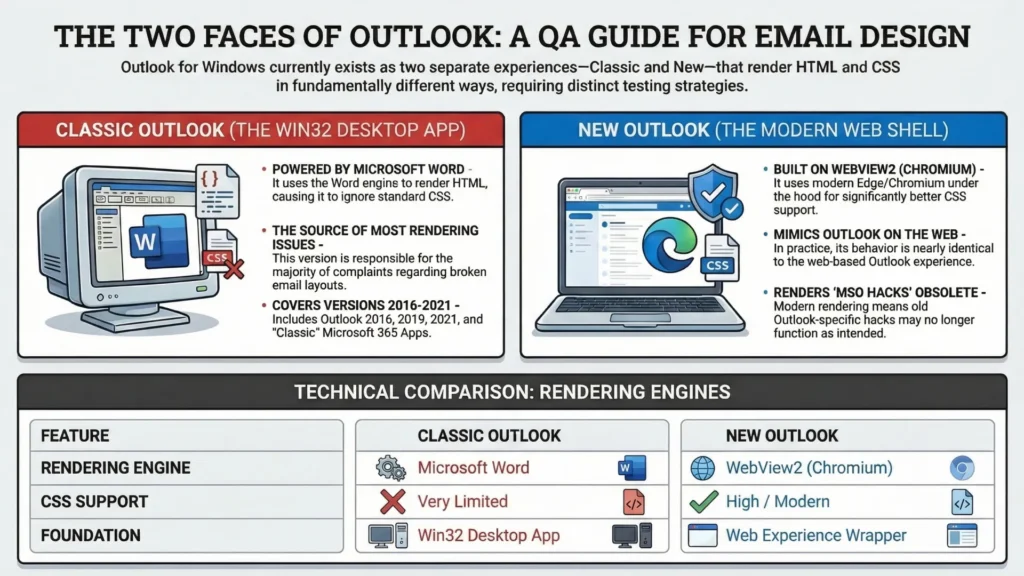
Classic Outlook for Windows (the Win32 desktop app) – this is Outlook 2016/2019/2021 and “classic” Outlook included with Microsoft 365 Apps. This is the one that renders HTML using the Microsoft Word engine (yes, Word), which is why it ignores a bunch of CSS that every other client takes for granted. This is still the source of most Outlook email rendering issues people complain about.1
New Outlook for Windows – this is the newer app that’s essentially the Outlook web experience wrapped in a Windows shell, built on WebView2 (so, modern Edge/Chromium under the hood). In practice it behaves much closer to Outlook on the web than to classic Outlook. HTML and CSS support is dramatically better, but it also means your old “MSO-only hacks” don’t magically carry over.2
The transition timeline matters right now (February 2026), because we’re mid-migration and it’s not clean.
- SMB tenants hit the “opt-out” stage starting January 2025 (new Outlook becomes the default, with the option to switch back).
- EDU follows in January 2026.
- Enterprise opt-out starts April 2026.3
So yes – depending on your audience, you can already have subscribers on both engines from the same send. Your test matrix has to cover both simultaneously, not in some neat “we’ll worry about the new one later” sequence.
One more timeline that’s easy to mix up with the rollout: Outlook 2021 reaches end of support on October 13, 2026. That doesn’t mean the Word engine vanishes from the planet overnight, but it does create a very real cliff for a chunk of corporate installs still parked on 2021.4
Outlook variants beyond the desktop app
The Windows split is the big headline, but the Outlook ecosystem has extra branches that matter when you’re testing emails in Outlook and someone swears “it looked fine for me”.
Outlook on the web (Outlook.com / Outlook Web) – web-based rendering, its own CSS filtering, and a weird gotcha: it doesn’t run MSO conditional comments. In many cases it strips the whole conditional block, which means if you tried to do clever <!--[if mso]>VML<![endif]--> plus <!--[if !mso]><!-->fallback<!--<![endif]--> gymnastics, you can accidentally delete both versions of a CTA. Test it, don’t assume.5
Outlook for Mac – generally far less cursed than classic Windows Outlook. Litmus (and every dev who’s compared the two) will tell you it’s a different engine story – WebKit, not Word – which is why it behaves more like Apple Mail than like Outlook 2019 on Windows. Still worth checking for font handling and spacing quirks, but it’s not the same battlefield.6
Outlook for iOS and Android – also not Word-based. That matters because a bunch of MSO-targeted tricks simply aren’t a thing there. They’re usually more predictable than classic Windows Outlook, but they still have their own filtering and partial support decisions.7
Core point: “I tested it in Outlook” means nothing unless you know which Outlook. Outlook 2019 on Windows and Outlook on an iPhone are not having the same experience from the same HTML. If someone says “it looks fine in Outlook”, the only sane follow-up is: which one.
What the word rendering engine actually does wrong
This could be its own small book, but here’s the practical catalogue – the stuff that should directly shape how you test.
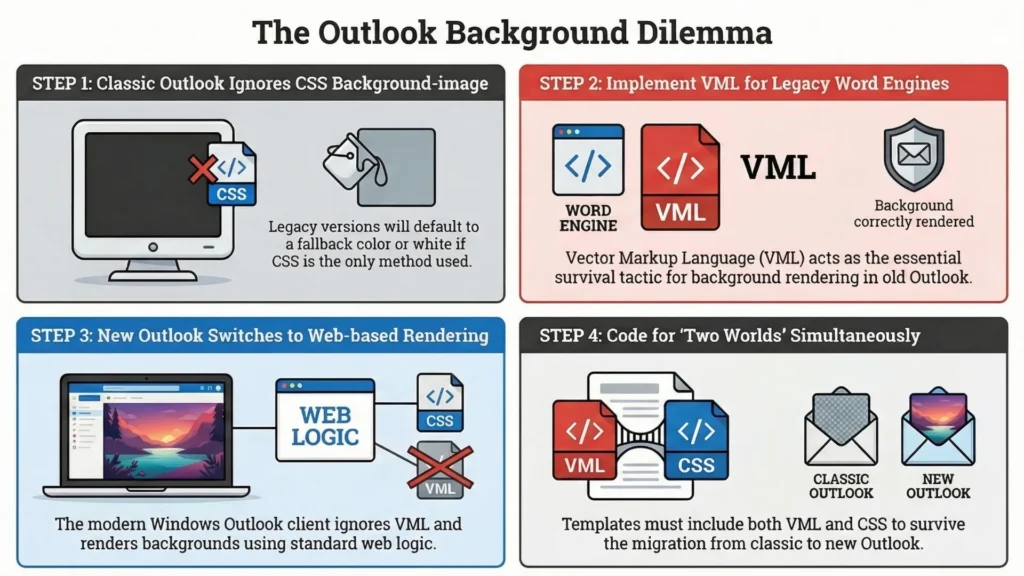
CSS background-image – ignored in classic Outlook. If your hero relies on a CSS background image, classic Outlook will happily pretend it never existed and show your fallback color (or white if you forgot the fallback). The usual workaround is VML. The annoying part is that VML is specifically a Word-engine survival tactic, and the new Outlook for Windows (web-based) doesn’t need it – and won’t render it the same way. So if you’re building templates meant to live through the migration, you need to think in “two worlds”, not one.
Padding and margin behavior is unreliable. Classic Outlook will ignore or mangle spacing in ways that don’t feel consistent across elements. Shorthand can be flaky, some properties are dropped depending on where they live, and you’ll end up doing explicit per-side padding and MSO-specific tweaks when the layout has to be bulletproof.
The random white line. This one is real, and it’s as stupid as it sounds: the Word engine does pixel/point conversion and you get fractional rounding that turns into hairline gaps in table structures. It can vary with Windows display scaling and DPI settings, which is why you can stare at it for an hour and then fail to reproduce it on your own machine.
No flexbox, no grid. In classic Outlook you’re back to tables. Not “tables because they’re safer”, tables because that’s what Word understands. Ghost tables inside MSO conditionals are still a standard pattern, and yes, the code looks like a ransom note if you show it to someone who lives in web dev.
VML (Vector Markup Language). It’s the duct tape for classic Outlook – backgrounds, shapes, sometimes button treatments. It’s also technical debt you’re going to want to quarantine, because the new Outlook for Windows is built around a web stack (WebView2) and is marching away from the Word-era hacks.8
And for sanity: before you write a single line of code based on vibes, use Can I Email (caniemail.com) as your baseline CSS support reference. It won’t stop Outlook from being Outlook, but it will stop you from debugging problems you invented by assuming support that never existed.
The testing workflow – how to approach testing emails in Outlook properly
Start with your audience data – not every Outlook version matters equally
Before you burn an afternoon testing emails in Outlook, check what your audience is actually using.
If you already have tooling in place, this is usually a two-minute pull:
- Litmus Email Analytics can break down opens by email client (including Outlook groupings), device, and more.
- Email on Acid Email Analytics also includes client and device tracking, so you can align your Outlook email testing tools to your real audience.
One annoying-but-important caveat: these are open-based signals, and opens are increasingly messy. Apple MPP muddies client/version data, and Outlook itself can block automatic image downloads by default (which can suppress tracking pixels unless the user downloads images). So treat your breakdown as directional, not gospel.
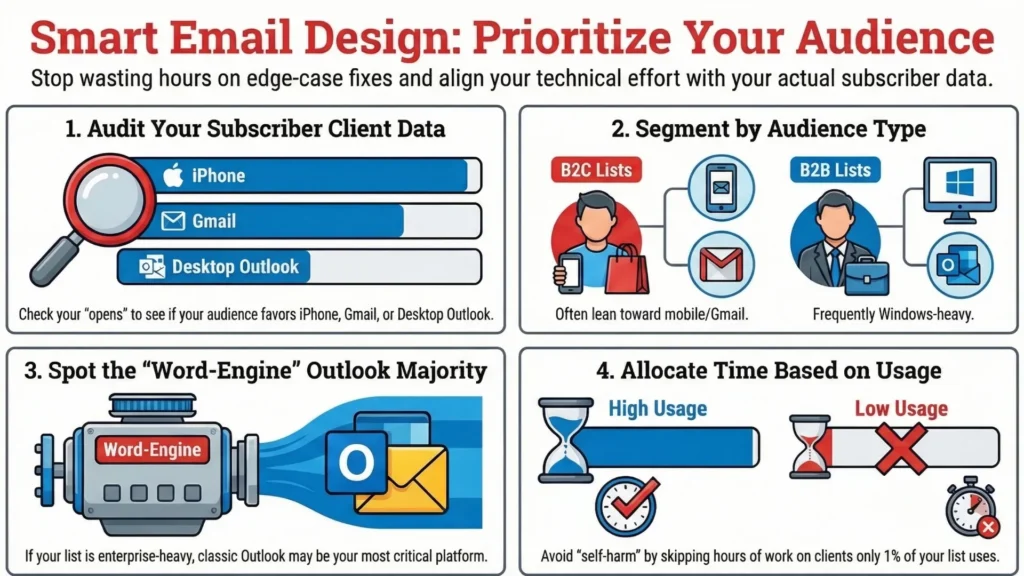
Why this step still matters: if 85% of your opens are iPhone + Gmail, spending four hours on a classic Outlook edge case might be pure self-harm. But if you’re doing B2B, enterprise, anything Windows-heavy, those classic Outlook desktop numbers can get wildly out of line with global averages. I’ve seen lists where the Word-engine Outlook desktop crowd was basically the whole party.
If you don’t have your own analytics yet, use a benchmark only as a temporary crutch. Litmus publishes monthly global client share data based on Litmus Email Analytics opens.
The practical output of this step is a decision: which Outlook environments are required in your test matrix for every send, and which ones are optional spot-checks depending on the campaign.
Build your Outlook test matrix
A test matrix is just a written list of environments you test for every campaign, so “I tested it in Outlook” means something concrete instead of being a vibes-based promise.
Recommended minimum matrix for most teams doing serious Outlook email rendering issues work:
- Classic Outlook for Windows (Word engine) – test at least one representative version you still see in analytics (often 2016/2019/2021/desktop Microsoft 365). Note: Office 2016 and 2019 are out of support as of October 14, 2025, but “out of support” doesn’t mean “not in the wild.”
- New Outlook for Windows – because new Outlook for Windows email testing is basically a different universe than Word-based Outlook.
- Outlook on the web (Outlook.com / Outlook Web) – web rendering, different CSS handling than desktop.
- Outlook for iOS – mobile app behavior, plus dark mode quirks.
- Outlook for Mac – generally more modern rendering than Word-engine Windows, but still worth a check if your audience uses it.
The matrix doesn’t need to be identical for every email type. A plain transactional receipt can run a lighter matrix. A launch email with a hero background image + Outlook-only fallbacks + dark mode constraints needs the full set. Write down which matrix applies to which email category, and make it a standard – not a judgment call that changes depending on who’s sprinting toward the send button that week.
Using Litmus for Outlook testing – practical workflow
Litmus is still one of the cleanest “show me the screenshots” workflows for Litmus Outlook testing, and it’s built around the reality that each inbox/client/version you check is its own thing (Litmus even spells out how previews are counted across versions).
Practical workflow tips:
- Set up a testing profile/client list once (your matrix), so every preview run is focused. Even if your plan includes unlimited previews, limiting the list keeps review faster and stops you from staring at 90 screenshots you don’t care about.
- Run previews after structural changes, not only at the end. Outlook bugs are often architectural (tables, ghost tables, MSO conditionals). Fixing architecture late is where “small change” turns into “why is everything moving now?”
- Use pre-send checks that match your risks. For Outlook-heavy sends, spam testing and QA checks can be useful as a gate (depending on what’s included in your Litmus plan).
Pricing note, without making up numbers: Litmus is currently positioned as a sales-led “Litmus Enterprise” product with plan details and pricing handled via contact/sales. If you’re writing this for freelancers and small teams, just say that out loud and don’t pretend it’s a casual $29 checkout.
Email on Acid as an alternative or complement
Email on Acid’s biggest workflow advantage is that they explicitly market unlimited previews and state their previews are on live clients – not emulations. When you’re iterating through Outlook fixes and running a bunch of tests in a row, that no-limits model changes how you work (more frequent checks, smaller changes, less batching).
Campaign Precheck is also worth calling out as a pre-launch gate because it pushes a structured sequence (content checks, deliverability-ish checks, previews, etc.) instead of relying on a tired human doing a last-minute scroll. Their feature page specifically mentions things like accessibility checks, URL validation, and blacklist verification in that workflow.
Honest trade-off (kept factual): neither platform is a magical replica of your subscriber’s exact machine. DPI scaling, installed fonts, Windows settings, and corporate policies can all change what Outlook does. Screenshot grids are still the best practical shortcut we have – just don’t confuse “looked fine in a tool” with “identical to every Outlook desktop in finance.” Also: if you’re using Email on Acid’s analytics, you can use client/device tracking to tighten your test matrix over time instead of testing everything forever.
Testing emails in outlook – the most common rendering problems and how to test for each
This is the section most people actually need, because they already have a broken email in front of them and they’re trying to work backwards from the wreckage. I’m going through the main issues in roughly the order they tend to show up during a normal build.
The random white line problem
If you’ve built emails for any length of time and you’ve ever stared at a horizontal white line slicing through a table layout in classic Outlook – one you can’t explain and can’t reproduce on demand – this is that problem.
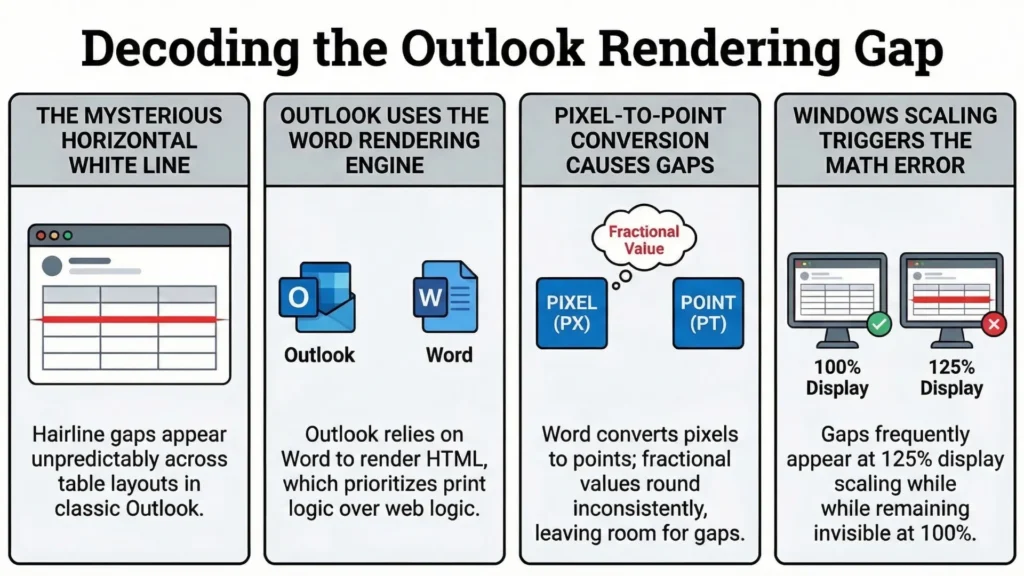
The root cause is Word-engine math: Outlook’s Word renderer converts pixel measurements into points, and when it lands on a fractional value that rounds differently across the layout, you get a hairline gap. It’s not “your code is wrong” so much as “your code left room for Word to improvise”, and Word is not a creative collaborator. This is also why it can appear at 125% Windows display scaling but not at 100%, and why screenshots from preview tools and real machines don’t always match perfectly.
Testing approach:
- If you can, test at 125% Windows scaling on a real machine for anything high-stakes. 125% is common on modern Windows setups, not some weird edge case.
- Treat preview screenshots as necessary-but-not-sufficient. Many services standardize their test environments (scaling/zoom) on purpose, which is great for consistency and bad for catching DPI chaos.
Fix direction (reduce measurement ambiguity):
- Set explicit
font-sizeandline-heightwhere Word would otherwise “figure it out”. - Use
font-size: 0/line-height: 0on spacer cells. - If the line is persistent and tied to table structure, a targeted “ghost break” can help in some layouts.
Background images not loading
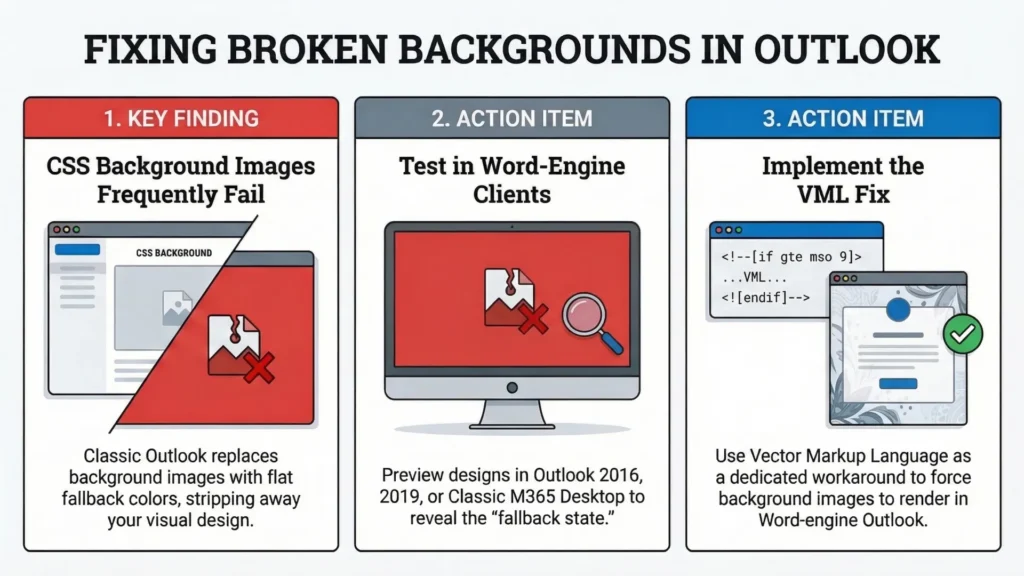
Classic Outlook for Windows does not support CSS background images the normal way. So your hero “background-image” becomes “background-color” (or white, if you forgot the fallback), and suddenly your design looks like someone unplugged half the email.
Testing:
- Preview in a Word-engine Outlook client (2016/2019/2021/classic M365 desktop). If a section relies on a CSS background image, you’ll immediately see the fallback state.
Fix:
- VML background technique (yes, it’s ugly, yes it works – in Word-engine Outlook).
Planning note for 2026+:
- VML and MSO conditional tricks are Word-engine tactics. New Outlook for Windows is web-based (WebView2 / Edge under the hood), so don’t assume your VML-heavy sections will behave the same there. Treat it as “likely ignored” until you verify with a real preview.9
- Also test Outlook on the web specifically, because Outlook.com has a long history of removing content inside conditional comment blocks. If your fallback is trapped inside those blocks, you can accidentally delete your own safety net.
Padding and margin rendering inconsistencies
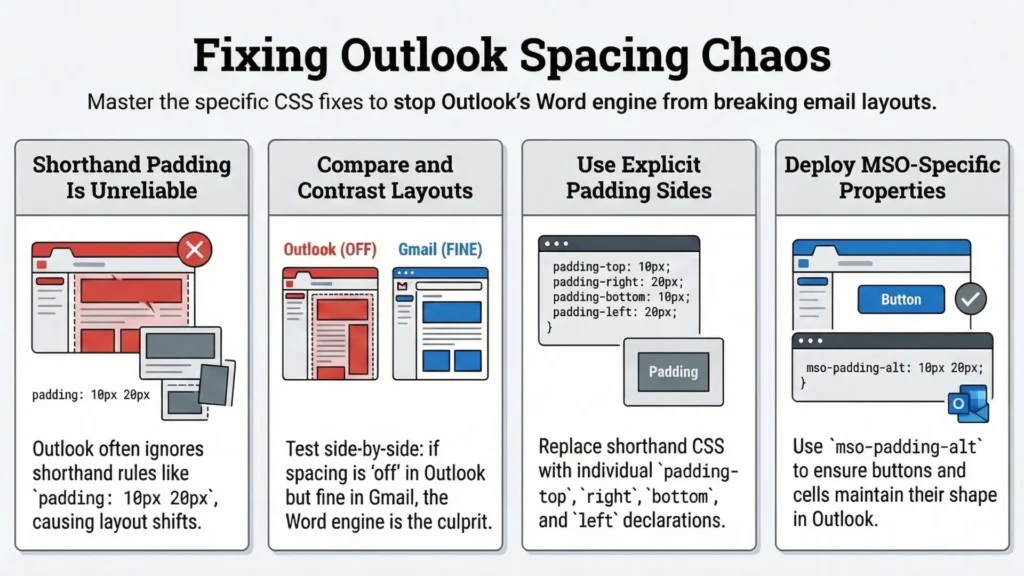
The Word engine is inconsistent with spacing, especially on table cells and around images. Something that looks perfectly aligned in Gmail and Apple Mail can shift in classic Outlook because specific padding rules get ignored or handled differently. Shorthand padding (padding: 10px 20px) is a frequent culprit – it works until it doesn’t, and Outlook will not tell you why.
Testing:
- Compare a known-good client (Gmail, Apple Mail) vs classic Outlook side by side. If the problem is “everything is still there but spacing is off”, this is usually where you are.
Fix direction:
- Replace shorthand with explicit sides (
padding-top/right/bottom/left) in any code that must survive Word-engine Outlook. - Use MSO-specific properties when needed (for example,
mso-padding-altshows up in a lot of battle-tested button patterns).
Buttons not rendering as designed
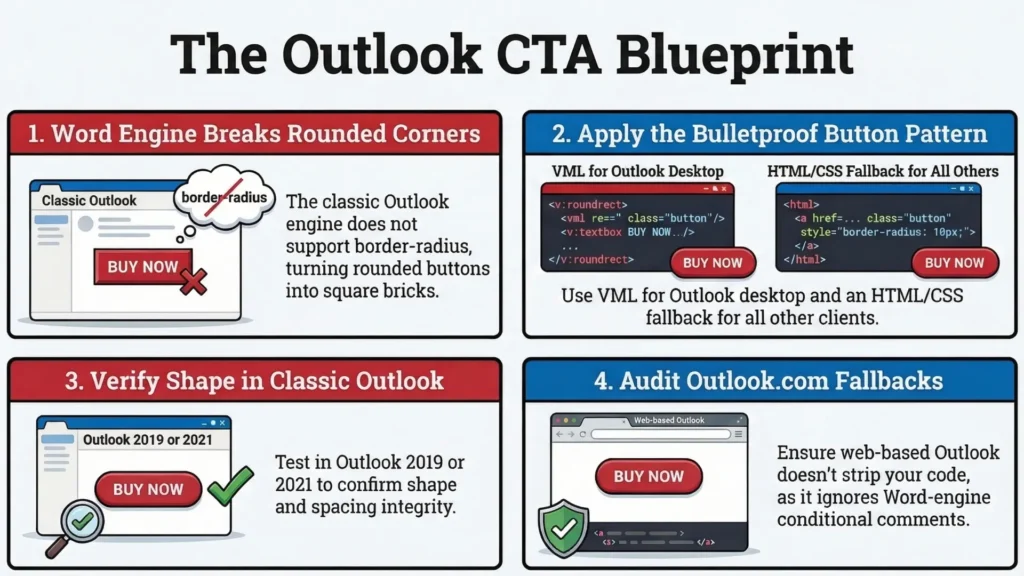
In classic Outlook, border-radius is not supported because the Word engine doesn’t support it. So your nice rounded CTA becomes a square brick. Not slightly different – just square.
The standard workaround is the “bulletproof button” pattern: VML for Outlook + HTML/CSS fallback for everything else. Campaign Monitor’s generator is basically the canonical reference people keep rediscovering every year. (buttons.cm)
Testing specifics:
- Check the CTA in at least one Word-engine Outlook (2019/2021/classic) to confirm shape and spacing.
- Check Outlook on the web separately. Outlook.com doesn’t support Word-engine conditional comments and has a track record of stripping conditional-comment blocks, which can wipe out VML-only buttons if the fallback isn’t structured to survive.
Post-2026 simplification note:
- Web-based Outlook experiences (Outlook on the web, and new Outlook for Windows) behave more like modern browsers. That generally means
border-radiusworks there – but don’t “delete the VML” on assumption alone. Keep it during the transition and simplify only when your audience data stops showing classic Outlook.
Dark mode in outlook – the specific testing challenge
Outlook dark mode is its own headache because the behavior is not consistent across “Outlook” as a family.
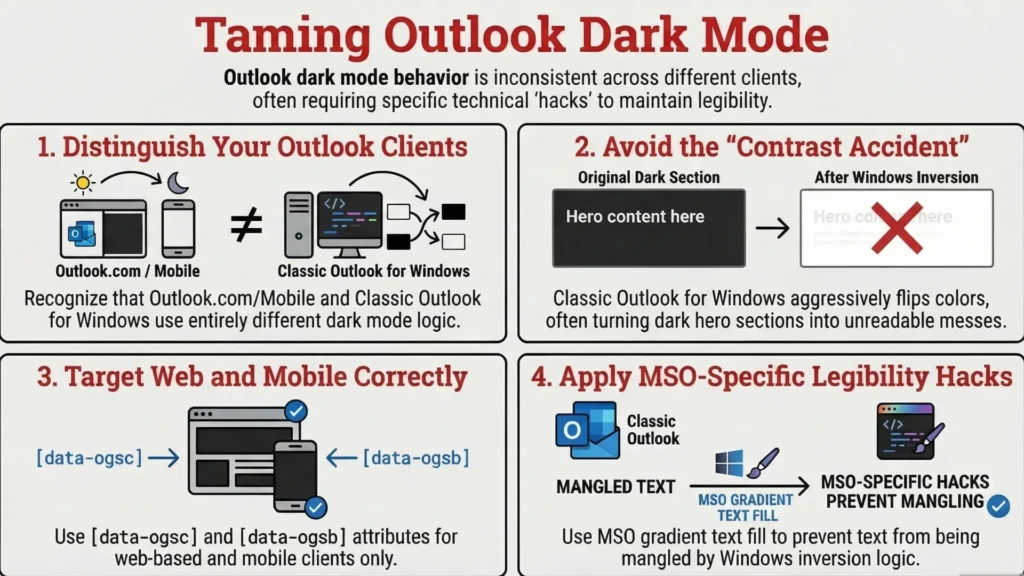
Classic Outlook for Windows can aggressively alter colors in dark mode – including flipping backgrounds and text in ways that can turn a carefully designed dark hero into a contrast accident. This isn’t a traditional rendering bug so much as Outlook applying its dark mode logic on top of your design. (litmus.com)
Important scope correction:
- The
[data-ogsc]/[data-ogsb]attribute targeting approach is for Outlook.com and Outlook mobile (Outlook’s web-based clients). It’s useful there, but it does not solve classic Outlook for Windows color changes.10
For Outlook for Windows dark mode, one of the more common “make it readable again” hacks is MSO-specific gradient text fill (the mso-style-textfill-type: gradient family). It’s not pretty, but it can help prevent text from getting mangled by Outlook’s inversion logic. Use it surgically for legibility, not as an attempt to force your entire email back to light mode.
Testing workflow for Outlook dark mode:
- Compare at least three: classic Outlook for Windows, Outlook on the web, and Outlook for iOS. They handle dark mode differently, and assuming they behave the same is how unreadable sections sneak through.
DPI scaling and font rendering issues
Windows display scaling is one of those “not a bug until your client screenshots it” problems. On modern laptops, 125% scaling is common, and it can change how Outlook’s Word engine sizes and aligns elements. Some things scale, some don’t, and suddenly your pixel-perfect alignment isn’t pixel-perfect anymore.
Testing:
- If you have access to a Windows machine, test at 125% scaling for high-stakes emails.
- If you’re relying on preview tools: remember many providers standardize scaling/zoom, which is why a real user’s laptop can still surprise you.
Fix direction:
- Use explicit
pxfont sizes and solid table-based structure in Outlook-targeted blocks. - Avoid relying on relative units inside MSO-heavy sections where Word is already doing its own conversions.
Conditional comments, vml, and mso code – the layer most testing workflows miss when testing emails in outlook
Most “how to test email in Outlook” guides stop at “run a preview and fix what looks broken”. That is fine for the obvious stuff, but it skips the layer that produces the truly confusing failures: the Outlook-only code path you cannot see unless you know where to look.
If you understand what conditional comments and VML are doing (and when they are not doing anything at all), your Outlook testing stops being whack-a-mole.
What conditional comments do – and where testing breaks down
Conditional comments are HTML comment blocks that only the Word-based versions of Outlook for Windows interpret. Everyone else treats them like comments and moves on.
Basic pattern:
<!--[if mso]>
  This code is only read by Word-based Outlook for Windows
<![endif]-->

<!--[if !mso]><!-->
  This code is hidden from Word-based Outlook for Windows
<!--<![endif]-->
You can target specific Outlook generations by Office version numbers:
<!--[if gte mso 15]>
  Outlook 2013 and later
<![endif]-->
The part that trips people: the mso numbers do not match the marketing names in any sane way, so if your targeting “should work” but doesn’t, check the mapping before you rewrite half the template.
Now the big testing trap: Outlook on the web has a long history of stripping content inside conditional comment blocks. That means you can accidentally delete your own button, your own layout, your own fallback – not because your logic was wrong, but because the client decided that whole block should not exist.
Practical rule:
- If the template uses conditional comments, you test Outlook on the web as its own client. Every time.
- And if the fallback is critical (CTAs, pricing blocks, legal footers), keep a version of it that can survive even if a client eats conditional blocks.
Ghost tables and the hybrid coding approach
Ghost tables are what you get when you build one layout for modern clients and a separate layout for Word-engine Outlook, then stitch them together with conditional comments.
The structure looks like this:
<!--[if mso]>
<table width="600" cellpadding="0" cellspacing="0" role="presentation">
  <tr>
    <td width="300">
<![endif]-->

  <!-- Content read by modern clients -->

<!--[if mso]>
    </td>
  </tr>
</table>
<![endif]-->
Two code paths. One email. Two separate ways to break it.
The testing failure point is predictable:
- You check Outlook 2019, it looks fine, you move on.
- Meanwhile Gmail is reading a different layout path and you never looked at it after your last structural change.
So if you touch ghost tables, you do a quick split check right after:
- one Word-engine Outlook
- one modern client (Gmail or Apple Mail)
That one habit prevents a lot of “it was fine yesterday” conversations.
Also, the new Outlook for Windows changes the game here. It is web-based, so it generally will not behave like Word-engine Outlook, and it may ignore your MSO-only path entirely. That does not mean ghost tables suddenly break new Outlook. It usually means they become dead weight in the source – still there, still ugly, but no longer the active layout path.
Test after each code change – not just at the end
This is the highest ROI thing you can change in a workflow. Not a tool. Not a hack. A habit.
Bad pattern:
- build the full template
- style everything
- test at the end
- discover the Outlook-only path is broken
- rip up structure that is now tangled with everything
Better pattern – targeted checks when the risk is highest:
- after the layout skeleton: Word-engine Outlook + one modern client
- after background image work: Word-engine Outlook + Outlook on the web
- after button work: Word-engine Outlook + Outlook on the web (this is where missing CTAs show up)
- after dark mode work: classic Outlook for Windows + a web-based Outlook (web or mobile)
Each check is small, fast, and specific. It is not the full matrix. It is you testing the thing you just touched.
Testing emails in outlook during the 2026 outlook transition – what it means for your workflow
We are in the transition right now. Not “soon”. Not “sometime this year”. As of February 2026, users have already had the option to switch for a while, and the next big step for managed enterprise tenants is scheduled for April 2026, where new Outlook is on by default but users can still switch back during that stage.
One detail that needs to be said out loud because people keep compressing it into one scary date: October 2026 is a real deadline for some installs (Office 2021, including Outlook 2021), but it is not the day the Word-engine Outlook universe disappears. Microsoft is describing support for existing classic Outlook installations continuing past that point. Translation: overlap. Expect overlap.
What changes for testing as new outlook grows
New Outlook for Windows is built on WebView2 and is explicitly inspired by the Outlook web experience. So in practice, a lot of the “classic Outlook for Windows” rendering pain is less relevant there, and a lot of the Outlook.com-style rules become more relevant.
That usually means:
- CSS that dies in Word-engine Outlook has a better chance of behaving normally.
- Some Outlook-specific workarounds (VML, ghost tables, MSO-only layout gymnastics) stop being “required for Outlook” and start being “legacy scaffolding for classic Outlook only”.
But do not jump from that to “cool, I can ship browser HTML now”. Email client support is still email client support, and the new Outlook is not a promise of perfect CSS, it’s just a different set of constraints.
What does not go away
- Conditional comment risk does not go away. Outlook on the web can still strip conditional blocks, and that can still delete content if you structure fallbacks badly.
- Dark mode complexity does not go away. “Outlook dark mode email” is still three different behaviors depending on which Outlook you mean.
Testing during the transition period – right now
This is the awkward window where you have two Outlook engines in the same audience.
So the matrix has to include both:
- one Word-engine Outlook for Windows (classic)
- new Outlook for Windows
- Outlook on the web (because it can break conditional-comment-heavy templates in its own special way)
If you have not added new Outlook for Windows to your standard matrix yet, do it now. Not in October. You want your surprises in previews, not in someone else’s screenshot.
What to audit in existing templates in 2026
If you have templates that have “worked fine for years”, that usually means “nobody has checked them against three Outlook variants recently”.
Audit priority:
- high-volume templates first (welcome, core promo template, cart abandonment)
- identify modules that rely on VML or heavy MSO-only layout tricks and plan a rewrite path
- document ghost tables at minimum, remove them only when your audience data supports it
- preview in at least one web-based Outlook (Outlook on the web and/or new Outlook for Windows) to make sure your conditional-comment strategy is not deleting content
Testing emails in Outlook – a repeatable pre-send checklist
The value of a checklist isn’t that it tells you things you don’t know. It’s that it removes the “I think I checked that” uncertainty from the end of a production cycle when you’re tired and trying to get the send out. Here’s the one I’d use, structured by phase.
Before writing any code
Know your audience first:
- Pull client share data from Litmus Email Analytics, Email on Acid Email Analytics, or your ESP’s own reporting – confirm which Outlook environments show up in real life (classic Outlook for Windows, new Outlook for Windows, Outlook.com, Outlook mobile).
- Check CSS property support on Can I Email (caniemail.com) for anything even slightly spicy – know what’s going to break before you build around it.
- Define the test matrix for this email type:
- Full matrix for campaign launches, promos, anything with custom layout or visual effects
- Lighter matrix for plain transactional emails – order confirmations, password resets, and similar
During development – test at each stage, not just the end
| Stage | Test these clients |
|---|---|
| After layout skeleton | Classic Outlook for Windows (2019/2021) + new Outlook for Windows |
| After background image implementation | Classic Outlook for Windows (2016 + 2019/2021) + Outlook.com |
| After button implementation | Classic Outlook for Windows (2019/2021) + Outlook.com |
| After dark mode styling | Classic Outlook for Windows (2019/2021) dark mode + Outlook for iOS |
Each of these is a targeted run, not the full matrix. The point is catching problems in isolation before they get buried under layers of code.
Pre-send final checks
Full Outlook preview suite (adjust based on your analytics):
- Classic Outlook for Windows (2016, 2019, 2021 / Microsoft 365 desktop)
- New Outlook for Windows
- Outlook.com
- Outlook for Mac
- Outlook for iOS
- Outlook for Android
Conditional comment behavior:
Test Outlook.com specifically for any template using conditional comments. Make sure the CTA still exists as a clickable thing a human can click. Don’t assume this works because it worked in classic Outlook for Windows.
Image loading:
- A lot of corporate Outlook environments still block external images by default (sometimes by policy, sometimes by “helpful” security defaults).
- Alt text has to carry the message on its own – if images are off, the email should still make sense and the CTA should still be actionable.
Dark mode – check all three separately:
- Classic Outlook for Windows dark mode – often full color inversion, which is where you get the fun “white text on a now-white hero” disaster.
- Outlook.com – tends to behave differently from the desktop app, even when both are “Outlook.”
- Outlook for iOS – its own rules, and it will ignore your assumptions with confidence.
DPI scaling (Windows display scaling):
- If your preview tool offers Windows scaling variants, use them.
- If it doesn’t, and the email is high-stakes, do one manual open on a real Windows machine at 125% scaling. It’s annoying. It also catches bugs that never show up in a neat screenshot grid.
Authentication and delivery (separate from rendering):
- SPF, DKIM, DMARC in place and passing for the domain you’re using in the From header.
- If you’re a high-volume sender into Outlook.com consumer inboxes (hotmail.com / live.com / outlook.com) – Microsoft has an explicit 5,000+ emails/day threshold and has been enforcing stronger authentication requirements since May 2025, so this is not a “someday” task.
- Test delivery to an Outlook.com address alongside rendering. Rendering can be perfect while the email quietly lands in Junk, and those are two different problems with two different fixes.
Post-October 2026 additions to the checklist
October 2026 is a real milestone (Office 2021 support ends then), but it’s not a magic switch where classic Outlook for Windows disappears overnight. Treat this section as “when your data says new Outlook is dominant enough that cleaning up legacy code is worth the risk.”
- Confirm VML-dependent elements are replaced or dual-coded with CSS equivalents (and still render cleanly in both classic and new Outlook during the overlap).
- Verify media query behavior in new Outlook for Windows (and confirm it matches what you see in Outlook.com, because “similar” is not “identical”).
- Remove or clearly document ghost table code in templates that are actively maintained.
- Simplify MSO conditional blocks once you can prove (with your own analytics) that classic Outlook for Windows is no longer a meaningful slice of opens.
Tools for testing emails in Outlook – honest opinions
Quick disclosure: Litmus and Email on Acid both have affiliate programs, and if you’re reading this on my site you’re going to run into affiliate links. That’s why I’m being blunt about where each tool is annoying, not just where it’s shiny.
Litmus
Best for: Teams with a real QA process (or teams trying to grow one), agencies running high-stakes campaigns, anyone using Litmus Builder as part of a repeatable workflow.
Why it’s strong for Outlook testing specifically:
Litmus previews are built to catch the fussy stuff Outlook is famous for – layout shifts, dark mode weirdness, and the small “why is this 2px off” problems that waste your afternoon. It also fits well into a production pipeline if your team wants one place for building, previewing, and reviewing.
The honest caveat:
Litmus is sales-led pricing now, and it’s positioned at teams, not hobby budgets. If you’re solo or small, get the quote first and decide with clear eyes. Don’t architect your whole workflow around a tool you might drop in two months because the price hurts.
Email on Acid
Best for: Teams that test a lot, iterate fast, and want fewer constraints when they’re in the middle of an Outlook debugging spiral.
Why it’s strong for Outlook testing specifically:
Unlimited previews (the way Email on Acid sells it) changes your behavior in a good way: you test more often and you stop “saving previews for later” like they’re rare coins. Campaign Precheck is also a decent forcing function for teams that otherwise do final QA via vibes.
The honest caveat:
In my own side-by-side use, Litmus has been slightly better at catching the weird edge-case shifts that show up in classic Outlook for Windows. Email on Acid is still very good – it’s just not flawless, and Outlook punishes anyone who thinks “flawless” exists here.
Free and lower-cost options
Can I Email (caniemail.com) – free CSS support reference by email client. Use it before you code, not after.
Mailtrap (Email Sandbox) – great for capturing test sends from staging, inspecting headers, and validating your HTML/CSS rules against client support data. It’s not a replacement for full screenshot testing across Outlook versions, but it’s a solid “did we build something broken” gate.
A cheaper screenshot service – there are lower-cost tools that offer multi-client screenshots without the full Litmus/EoA feature set. They can be worth it if budget is the main constraint and you’re realistic about what you’re buying.
Sending real test emails to real Outlook installs – tedious, doesn’t scale, but sometimes it’s the tie-breaker. When a preview tool and a real install disagree, trust the real install.
What testing emails in Outlook looks like in 2027 and beyond
October 2026 is the end-of-support date for Office 2021, and it’s a meaningful line in the sand. But corporate email ecosystems don’t move like a TikTok trend. IT rollout cycles are slow, procurement is slow, and plenty of orgs will keep running “the thing that works” long after Microsoft would prefer they didn’t.
Check your analytics, not just the industry calendar. Your subscribers decide which Outlook versions belong in your matrix.
What gets better as new Outlook takes over:
Once new Outlook for Windows becomes the bulk of your Outlook opens, Outlook testing becomes less of a bespoke horror genre.
- Web-based rendering means more predictable CSS behavior.
- Fewer MSO-only hacks.
- Less VML maintenance.
- Less ghost table archaeology.
You still test, obviously. But you spend more time doing normal work and less time translating a design into something Microsoft Word can tolerate.
What stays complex:
Dark mode remains messy because different clients do different kinds of inversion and they change over time. Outlook is part of that mess, not the only part.
Authentication and deliverability also stay in the checklist permanently. Gmail, Yahoo, and Microsoft have all tightened bulk sender requirements in the last couple of years. Rendering and inbox placement are now two parallel tracks of “testing emails in Outlook” – skip either one and you get bitten.
Conclusion
Testing emails in Outlook properly means you stop saying “I tested Outlook” like that’s a sentence with meaning. You pick the Outlook environments that match your audience, you define a matrix, you test early (not only at the end), and you use preview tools for what they’re good at without trusting them like they’re physics.
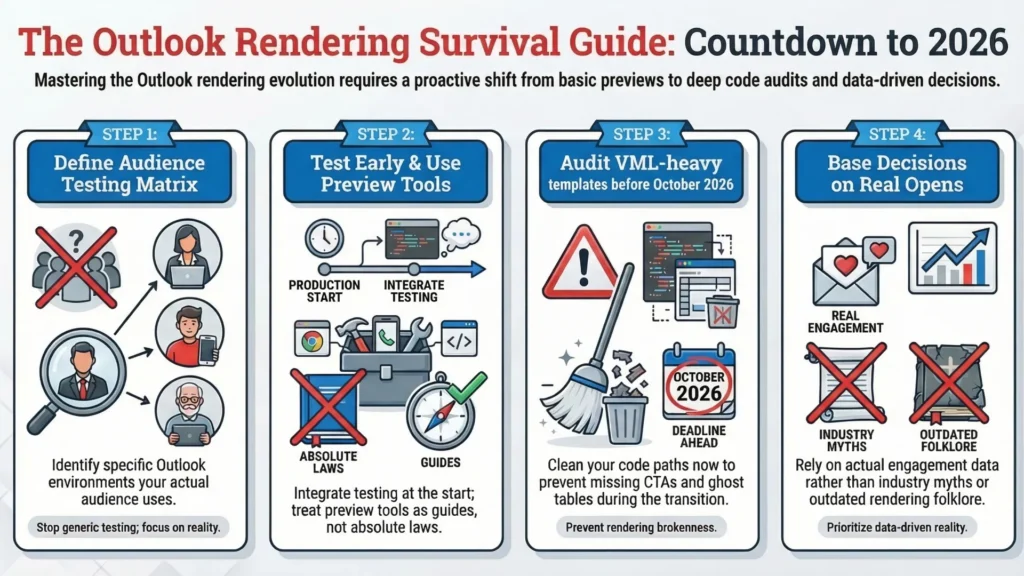
October 2026 is coming whether your templates are ready or not. If you audit anything VML-heavy now, keep your code paths clean during the overlap, and base your decisions on opens rather than folklore, you’ll have a much easier 2027 than the teams still finding missing CTAs the night before a launch.
No dramatic finish. If you want follow-ups that are worth writing, they’re these: a real Outlook dark mode troubleshooting guide, a proper Litmus vs Email on Acid workflow comparison (not a feature checklist), and a “how to delete ghost tables without deleting your sanity” teardown.
Quiz to test your knowledge
Let’s play! To solidify what you have learned, take a short quiz.
Results


#1. Which rendering engine is responsible for most of the legacy HTML and CSS limitations found in Classic Outlook for Windows?
#2. The ‘New Outlook for Windows’ is built upon which technology, significantly improving its support for modern CSS?
#3. According to the guide, what is the specific end-of-support date for Outlook 2021, creating a significant ‘cliff’ for corporate installations?
#4. When testing in Outlook on the web (Outlook.com), what is a common critical issue regarding conditional comments?
#5. What is the primary technical cause of the ‘random white line’ problem in Classic Outlook layouts?
#6. Which markup language is described as the ‘duct tape’ for fixing background image issues in Word-engine Outlook?
#7. At what Windows display scaling percentage are layout bugs, such as the random white line, most commonly reproduced?
#8. The CSS attributes [data−ogsc] and [data−ogsb] are specifically used to target dark mode in which environments?
#9. Why is it recommended to test after each structural code change rather than only at the end of development?
#10. How does Outlook for Mac differ from Classic Outlook for Windows in terms of rendering?
Footnotes
- https://www.emailonacid.com/blog/article/email-development/word-rendering-engine/ ↩︎
- https://learn.microsoft.com/en-us/microsoft-365-apps/outlook/overview-new-outlook-windows ↩︎
- https://learn.microsoft.com/en-us/microsoft-365-apps/outlook/get-started/guide-product-availability ↩︎
- https://learn.microsoft.com/en-us/lifecycle/products/outlook-2021 ↩︎
- https://www.reddit.com/r/sysadmin/comments/1hy5ukh/psa_new_outlook_will_be_forcefully_installed_on/ ↩︎
- https://www.litmus.com/blog/a-guide-to-rendering-differences-in-microsoft-outlook-clients ↩︎
- https://www.emailonacid.com/blog/article/email-development/word-rendering-engine/ ↩︎
- https://learn.microsoft.com/en-us/microsoft-365-apps/outlook/overview-new-outlook-windows ↩︎
- https://stackoverflow.design/email/base/mso/ ↩︎
- https://www.hteumeuleu.com/2021/emails-react-outlook-com-dark-mode/ ↩︎