Here’s the failure mode with animated GIFs in email that keeps burning people, and it’s almost always the same shape. Someone builds a slick 8-second product GIF. It loops beautifully in Chrome. It looks perfect in the Apple Mail test. Everyone in the approval chain nods. Then a big chunk of the list opens it in classic desktop Outlook. And they don’t see the animation. They see one frozen frame, caught mid-motion. The product’s half-assembled and the headline hasn’t landed. Nobody caught it, because nobody in the chain opens their mail in Outlook on Windows.
That’s the whole game with animated GIFs in email. The GIF wasn’t broken. It rendered exactly the way a GIF renders in that client. It got built as if every inbox was a browser. A decent slice of them aren’t.
So this piece is about motion that actually reaches people. Not the demo-reel version. The version that survives Gmail and Apple Mail. And survives the one client that shows a single frame and shrugs. Animated GIFs in email are still the only motion format you can halfway trust. And the real deliverable, the thing that decides whether it works, is a frame most people never think about.
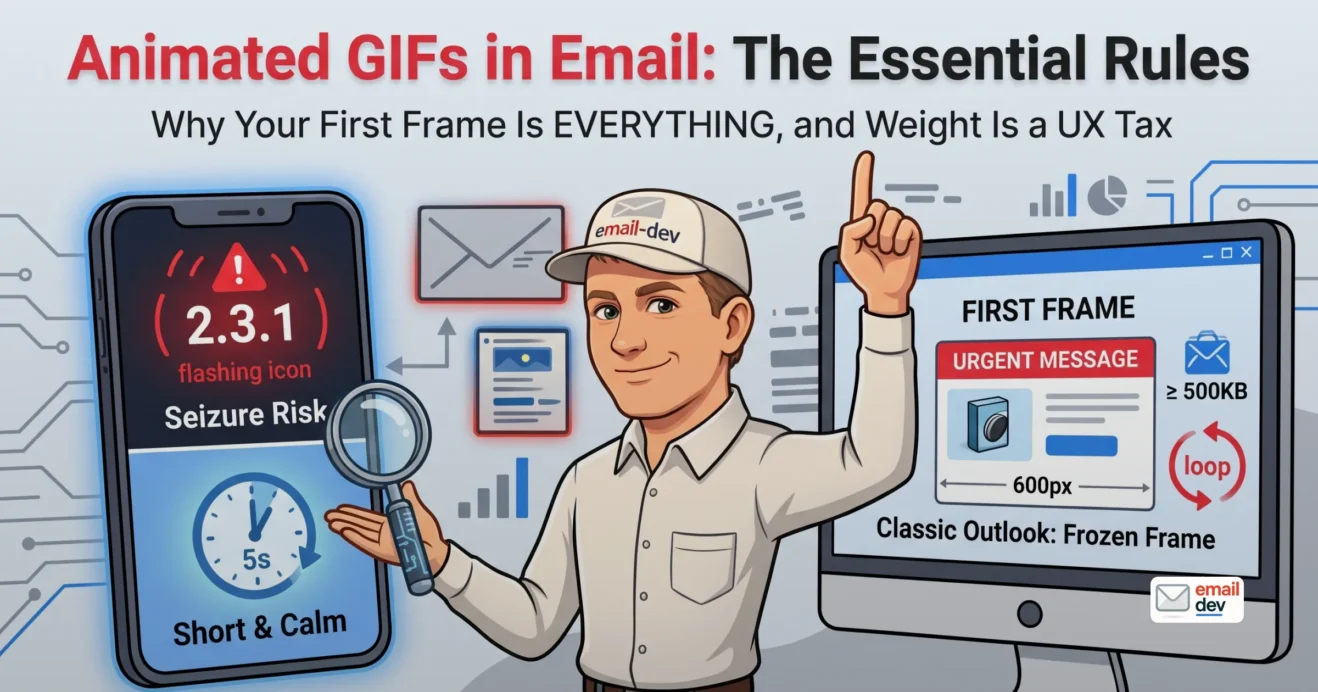
Quick answer: Animated GIFs in email still work in most clients. That’s Gmail, Apple Mail, Outlook on the web and mobile, and the new Outlook for Windows. The stubborn exception is classic desktop Outlook, which shows only the first frame. So the rule that runs everything: build that first frame to carry the message alone.
- Why animated GIFs in email are still the only motion format that works
- CSS animation looks great until it doesn’t
- HTML5 video is a fallback in disguise
- The one-line verdict
- Do animated GIFs in email actually animate? a client-by-client check
- The honest take on Outlook (before you blame it for everything)
- One more thing you can’t control
- The first-frame rule, which is basically the whole job
- Don’t save the reveal for the end
- What that looks like in practice
- The alt-text half nobody mentions
- The hosted-link pattern (use with caution)
- File size is a deliverability problem, not just a speed problem
- The Gmail clip number nobody plans for
- The mobile-bandwidth reality
- The Apple Mail Privacy Protection wrinkle
- Target numbers, stated plainly
- How to shrink animated GIFs in email without wrecking them
- Step 1 – drop the frame rate
- Step 2 – shrink the color table
- Step 3 – kill duplicate frames
- Step 4 – keep dimensions honest
- Step 5 – add lossy GIF compression
- Step 6 – front-load, then trim the tail
- The tools that actually earn their place
- The accessibility part everyone skips (and it’s the one that can hurt someone)
- Flashing is a seizure risk, full stop
- Auto-playing motion should be short and calm
- prefers-reduced-motion barely helps you here
- The vestibular angle people forget
- But isn’t GIF dead? APNG, WebP, AVIF and the 2026 format question
- The email catch
- The verdict
- The five-year read
- When motion actually earns its place (and when it’s just noise)
- The dark-mode gotcha worth a sentence
- The cost-consciousness note
- Test the sent version, in real clients, not your browser
- The tools, with the honest prices
- The cheap fallback that beats the matrix
- A quick pre-send checklist
- Frequently asked questions
- Do animated GIFs work in email?
- Why won’t my GIF animate in Outlook?
- What’s the ideal file size for a GIF in email?
- How do I make my GIF’s first frame the fallback?
- Are animated GIFs bad for accessibility?
- Should I use video instead of a GIF in email?
- Can I use CSS animations instead of a GIF?
- Is APNG or WebP better than GIF for email?
- The short version
Why animated GIFs in email are still the only motion format that works
Let me be blunt about the landscape. Motion in email is basically GIF or nothing dependable. That’s not nostalgia. That’s just where client support actually sits in 2026.
People love to declare the GIF dead. On the open web, they’ve got a point. In the inbox, it’s a different story. And the alternatives keep failing the reach test.
Here’s why this matters for planning. When you commit to animated GIFs in email, you’re not picking the prettiest format. You’re picking the one that shows up in the most inboxes. That’s a reach decision, not a design decision. The two get confused constantly. A format that looks incredible in a demo, but only reaches a third of your list? Worse than a plain GIF. Animated GIFs in email win on reach, every time. It almost always comes down to that.
CSS animation looks great until it doesn’t
CSS keyframe animation works in exactly the clients you’d guess. Apple Mail, iOS Mail, a bit of Outlook.com. And it does nothing in the clients that matter for reach.
So @keyframes is a progressive-enhancement toy. It’s fine for a hover shimmer that degrades to nothing. It’s useless when the animation is the message. If your motion has to communicate, CSS can’t carry it across a real list. For the CSS-support reality and the checkbox hack, see the interactive email guide.
HTML5 video is a fallback in disguise
Video sounds like the grown-up answer. It isn’t, not yet. Autoplay works in roughly the Apple-clients slice. Everywhere else you need a GIF-or-image fallback.
Which means you’re shipping a GIF anyway for most of your list. Video is nice progressive enhancement for the right audience. It’s not something to bet a launch on.
The one-line verdict
For animation that has to work everywhere, it’s a well-built GIF. And it probably stays that way until the new Outlook fully displaces the old one. I don’t love the 256-color ceiling either. It’s the pragmatic pick regardless.
One honest aside before we go deeper. Half the “GIF is dead” takes are about the web, where they’re correct. Email is not the web. We’ll get to APNG and WebP and why they’re not your escape hatch yet.
Do animated GIFs in email actually animate? a client-by-client check
This is the question everyone should ask first and almost nobody does. Does the thing move where your recipient opens it? Here’s the honest matrix. I’d verify it against caniemail.com before any big send, because this stuff shifts.
| Client | Animates the GIF? | The catch |
|---|---|---|
| Gmail (web, iOS, Android) | Yes | Fine. Just watch total email weight (clip threshold). |
| Apple Mail (macOS, iOS) | Yes | The most reliable. Also where your test looks best – don’t be fooled. |
| Outlook.com / Outlook web | Yes | Behaves like a browser. |
| New Outlook for Windows | Yes | Chromium engine, so it animates normally. |
| Outlook for Mac | Yes | Animates. |
| Outlook mobile (iOS / Android) | Usually | Test it. Some builds treat GIFs oddly. |
| Classic Outlook for Windows (Word engine) | No | Shows frame one only, as a static image. The whole reason this article exists. |
The honest take on Outlook (before you blame it for everything)
The freeze is real. It’s specifically the classic Word-engine desktop version of Outlook on Windows. That version renders HTML with Microsoft Word’s engine, and Word doesn’t animate GIFs. It grabs frame one and ignores the rest.
But here’s the part the panicky blogs skip. The new Outlook for Windows animates GIFs like any browser, because it’s Chromium under the hood. And Microsoft is winding the classic client down. So the freeze is a shrinking problem, not a permanent one.
“Shrinking” isn’t “gone,” though. Corporate and enterprise lists still skew toward classic Outlook. If that’s your audience, you design for the freeze, full stop. If your list is DTC consumers on Gmail and Apple Mail, you can relax about it a lot. Know your own client mix before you decide how much to care.
One more thing you can’t control
There’s a user setting in Outlook that disables animated graphics entirely. So even a modern Outlook can show a static frame if the recipient turned motion off. You can’t do anything about that. It just reinforces the same rule, which is the next section, and it’s the important one.
The first-frame rule, which is basically the whole job
This is the spine of the whole topic. It’s also the thing generic posts give one lazy sentence. So let’s give it room.
Definition: A first-frame fallback means designing the opening frame of your GIF to communicate the full message on its own. Headline, product, call to action. The clients that don’t animate display that frame and nothing else.
Read that again if you’ve ever shipped a GIF that “worked in testing.” The non-animating clients don’t show a broken image. They show frame one. If frame one is nonsense, that’s what a chunk of your list gets.
Don’t save the reveal for the end
This is the mistake I see most. People build the animation like a movie. Big payoff at the finish. Punchline on frame 30.
But frame 30 doesn’t exist for the frozen crowd. So front-load. The payoff has to live near the start.
If your animation is a before-and-after, ask one question. Which frame would you want a non-animating recipient to see? It’s almost always the “after.” The result. The payoff.
So consider opening on the payoff, then animating the lead-up as a loop. Weird trick, works great.
What that looks like in practice
- A product spinning. Open on the hero angle, not on the back of the box.
- A countdown. Open on the offer itself, not on the number “10.”
- A UI walkthrough. Open on the finished result, with a small “watch it work” cue.
The alt-text half nobody mentions
Images get blocked by default in a meaningful slice of inboxes. So some people see neither the animation nor the first frame. They see your alt text. Only your alt text.
Which means the alt text also has to carry the message. Same job, no pixels. This ties GIFs straight into the broader image work – there’s more on this in the image optimization for email guide.
The hosted-link pattern (use with caution)
Here’s an option for lists heavy on non-animating clients. Some senders use a static image with a play-button overlay. It links out to the animation on a landing page.
Honest tradeoff, though. It moves the motion out of the inbox. For some campaigns that defeats the entire point. And it adds a click. I mention it because it exists, not because I love it.
If you take one thing from this whole article, take this. The first frame is the deliverable, not the loop. Get it right and animated GIFs in email work everywhere, even in the clients that refuse to move. Get it wrong and no amount of clever animation saves you. It’s the difference between a GIF that reaches your list and a GIF that reaches half of it.
File size is a deliverability problem, not just a speed problem
Let me reframe weight, because most people think about it wrong. A fat GIF isn’t only slow. It eats your byte budget. And it can get your email clipped. That’s a money problem, not a vanity one.
Weight is the quiet killer of animated GIFs in email. It doesn’t announce itself. The GIF still “works.” It just loads slowly, clips your footer, and drags your open experience down. And you won’t see it in a desktop preview on fast wifi. You see it on a phone, on cellular, three seconds into a load that never finishes.
The Gmail clip number nobody plans for
Gmail truncates messages over roughly 102KB of HTML. It cuts off everything below that line. And guess what lives below the fold? Your unsubscribe link, footer and legal.
Now, precision matters here, because people conflate these two things. The 102KB is the HTML weight. The GIF’s own bytes load separately, as an image request. But the two compound your total payload and your load experience. Verbose markup plus a heavy inline reference pushes you toward that clip line. So keep both lean.
The mobile-bandwidth reality
A 5MB GIF on a phone, on cellular, is a frustrated recipient. It’s a slow load and a lost open. Weight is a UX tax. And it’s paid by the people most likely to be on the move.
The Apple Mail Privacy Protection wrinkle
This one’s underused, and it’s a genuinely good argument. Since iOS 15, Apple Mail prefetches and caches your remote images. Across your whole Apple-Mail audience. Whether or not anyone opened the email.
So a bloated GIF isn’t just slow for openers. It’s getting pulled down at scale for people who never looked. Lightweight images quietly save you on the back end. There’s a deeper version of this in the image optimization for email piece.
Target numbers, stated plainly
- Keep the GIF under 1MB. Ideally near 500KB.
- Dimensions sane. 600-640px wide is plenty for email.
- Loop short. 3-5 seconds reads better than something long and hypnotic.
Those aren’t rules from a spec sheet. They’re what actually holds up across clients and mobile networks in practice.
How to shrink animated GIFs in email without wrecking them
Right, the hands-on part. This is where animated GIFs in email go from “too heavy to ship” to “actually fine.” The mental model I use is simple. Weight equals frames times colors times dimensions. So you attack all three.
Step 1 – drop the frame rate
You rarely need buttery smoothness in email. 10-15fps is plenty for most motion. Cutting every other frame and doubling the delay keeps the timing. It can roughly halve the file.
Step 2 – shrink the color table
GIF caps at 256 colors anyway. Flat, simple animations survive a much smaller palette. Fewer colors, smaller file.
Honest aside: this is exactly why photographic GIFs look like garbage. The palette limit genuinely annoys me. Anything with gradients or skin tones suffers. It’s the one thing about the format I’d happily kill.
Step 3 – kill duplicate frames
If the animation holds on a beat, you don’t need ten identical copies of that frame. Optimizers collapse those automatically. Let them.
Step 4 – keep dimensions honest
A 1200px animated hero is a multi-megabyte mistake. Export at display size, not at “just in case” size. Retina wants roughly 2x display width, not 4x.
Step 5 – add lossy GIF compression
This is the underrated lever. Tools with a lossy slider can cut real weight. EZGif is the obvious one. Somewhere around 20-40% lossy usually holds up fine on email motion. Test it, eyeball it, ship the lighter one.
Step 6 – front-load, then trim the tail
Since classic Outlook freezes on frame one, and long loops distract, keep it short. A tight, well-composed loop is smaller and better. Two wins from one decision.
The tools that actually earn their place
- EZGif – quick compression, lossy slider, frame trimming, right in the browser. My go-to for a fast pass.
- Photoshop / After Effects export – when you need real control over the palette and timing.
- ImageOptim-type tools – final squeeze on the exported file.
One note. If you used to reach for Putsmail to fire off a quick test, don’t. Putsmail is no longer available. It’s gone. Use your ESP’s own seed list or a preview tool instead. Don’t send people to a dead link.
I’m probably oversimplifying the whole dithering-versus-banding thing here. There’s a real color-science rabbit hole. But you don’t need the lecture. You need a lighter file that still looks decent. Moving on.
The accessibility part everyone skips (and it’s the one that can hurt someone)
Most GIF-in-email posts either ignore this or wave at it vaguely. That drives me up the wall. Because this is the one section where getting it wrong isn’t a rendering bug. It’s a person having a seizure.
So we do it properly.
Flashing is a seizure risk, full stop
WCAG has a rule called Three Flashes or Below Threshold. That’s Success Criterion 2.3.1, Level A. Content must not flash more than three times per second. The W3C understanding doc spells it out.
This isn’t a “test and see” rule. A strobing GIF can trigger a seizure faster than anyone can look away. There’s no A/B test for that. Never ship flashing motion. I’ll say it plainly because it needs saying plainly.
Auto-playing motion should be short and calm
Another one. Pause, Stop, Hide – that’s SC 2.2.2, Level A. Anything moving automatically for more than about 5 seconds should be pausable, stoppable, or hideable.
Here’s the email problem. You have almost no way to add a pause button. The controls just aren’t there. So in email, the practical compliance move is design, not controls.
- Keep loops short. Under about 5 seconds.
- Don’t loop forever if you can avoid it.
- Never make motion essential to understanding the message.
prefers-reduced-motion barely helps you here
On the web, you’d wrap animation in @media (prefers-reduced-motion: reduce). You’d swap the GIF for a static image for people who opted out. Clean. Respectful. MDN documents it well.
In email? That media query is essentially only honored in the Apple clients. And it can’t un-animate a baked GIF anyway. A GIF is a GIF. So you can’t lean on the reduced-motion escape hatch the way you can on the web.
Which throws the responsibility back onto restraint. If in doubt, don’t animate. More on this in the accessible HTML emails guide.
The vestibular angle people forget
Big, fast, parallax-style motion triggers dizziness and migraines. Specifically for people with vestibular disorders. Subtle beats flashy. And not only for taste reasons – for actual comfort and health.
Here’s the thing I keep coming back to. The accessible choice and the tasteful, deliverable choice are usually the same choice. Short. Calm. Purposeful. A first frame that stands alone. Accessibility here isn’t a tax. It’s just the good version.
And that’s the whole ethic behind animated GIFs in email done right. You’re not fighting the constraints. You’re using them. The client that freezes forces a strong first frame. The seizure rule forces calm motion. The weight limit forces a tight loop. Every constraint pushes you toward the same email you should’ve built anyway. Funny how that works.
But isn’t GIF dead? APNG, WebP, AVIF and the 2026 format question
Your developer readers are already thinking it, so let’s head it off. GIF is an ancient, inefficient format. Surely there’s something better by now?
On the web, absolutely. In email, not quite yet. Here’s the honest breakdown.
Definition: APNG, animated WebP, and animated AVIF all compress dramatically better than GIF. They support proper transparency and millions of colors. On the web, they’re straight upgrades over the GIF.
The email catch
These formats inherit the exact support gaps of their static versions. And the recurring villains are, surprise, Gmail and classic Outlook.
- Animated WebP – Gmail’s image proxy re-encodes WebP and strips the animation. You get a single static frame. Confirmed behavior in 2026.
- APNG – Apple Mail and Thunderbird render it. Gmail and Outlook show the static first frame. Same story.
You can serve these with <picture> fallbacks. But now you’re maintaining fragile fallback markup. To ship a format half your audience can’t see. To save bytes on a format that already works. The juice isn’t worth the squeeze yet.
The verdict
In 2026, for animation that must work everywhere, a well-optimized GIF is still the answer. Watch APNG and WebP. Don’t deploy them as your primary animated format yet. Wait until your own analytics say classic Outlook and the Gmail gap shrank enough to matter.
The five-year read
Here’s where I think this goes, and I could be wrong. As classic Word-engine Outlook finishes fading, and the new Chromium Outlook becomes the default, the format conversation loosens up. Same way the static WebP conversation is loosening right now.
Somewhere in the 2028-2030 window, animated WebP with a GIF fallback gets reasonable for a lot of lists. AVIF starts being worth testing. But not before your audience’s client mix earns it. Audit that mix quarterly. Let the data tell you when to switch, not the calendar. This lines up with the format timeline in the image optimization piece, so the two agree.
When motion actually earns its place (and when it’s just noise)
Let me push back on my own topic for a second. Not every email needs a GIF. Most don’t. This isn’t a cheerleading post.
Motion works when it shows something a static image can’t.
- A product actually in use.
- A before-and-after transformation.
- A UI doing the thing it does.
- A subtle bit of life on a hero image.
Motion flops when it’s decorative jitter. A wobbling icon. A pointless sparkle. A loop that adds nothing but weight and distraction. If you can’t say in one sentence what the animation is for, cut it. That’s my whole rule.
The dark-mode gotcha worth a sentence
A GIF with a hard white background looks fine in light mode. In dark mode, it’s a glaring white box. If motion matters to your brand, the GIF has to survive color-scheme changes too. There’s a full breakdown in the dark mode email guide.
The cost-consciousness note
A good GIF is real production time. Frames, palette tuning, cross-client testing. It’s not free. So spend it where motion sells, not where it decorates. If the animation isn’t moving the metric, it’s just budget you set on fire.
Test the sent version, in real clients, not your browser
This is the house lesson, and it applies to everything, but it especially applies here. Your local Chrome preview animates everything. It lies to you about Outlook. Your Apple Mail test looks perfect – because Apple Mail is your best-case client, not your worst.
So you have to render animated GIFs in email where they’ll actually be opened. Not where they look nicest.
The tools, with the honest prices
Litmus, with an asterisk. Still the most thorough previewing across roughly 100 client and device combos. Every Outlook variant. Dark-mode previews. It’s genuinely the fastest way to catch the frozen first frame, the too-heavy GIF, the dark-mode box.
The asterisk is price. Litmus was acquired by Validity in April 2025. The entry Basic tier got retired in August 2025. Everyone moved to the Core plan at $500 per month – 2,000 previews, 5 seats. Annual billing lands north of $5,000. The old, affordable small-team option is gone. For an in-house team running dozens of campaigns, it still pencils out. For a solo freelancer, it stings.
Email on Acid is the honest cheaper alternative. Comparable preview testing from around $99 per month on the Basic tier, less on annual. Roughly 80% cheaper than Litmus for the core previewing job. Which is exactly why it keeps coming up in every “Litmus price hike” thread.
Putsmail is no longer available. If you leaned on it for a quick test send, that habit is dead. Use your ESP’s own seed-list or test-send instead.
The cheap fallback that beats the matrix
Here’s my slightly unglamorous secret. A cheap old Windows box with classic Outlook installed catches the freeze better than any percentage in a support chart. Real device, real render.
And test the sent email. Not the file on your machine. Your ESP or course platform can mangle markup between your file and the inbox. GetCourse, for one, has opinions. What you send isn’t always what you built.
A quick pre-send checklist
Before any launch that leans on animated GIFs in email, I run down this list. It takes five minutes. It’s saved me more than five minutes.
- First frame stands alone. Read it with the animation off. Does it still sell?
- Weight is under 1MB. Ideally near 500KB. Check the actual exported file.
- No flashing. Nothing strobes more than three times a second. Non-negotiable.
- Alt text carries the message. Blocked-image users should still get the point.
- Dark mode survives. No glaring white box on a hard background.
- Tested in real classic Outlook. Or at least a Litmus preview of it.
- The sent version checked. Not the local file. The one your ESP actually delivered.
If all seven pass, ship it. If one fails, fix it before send, not after. Nobody remembers a launch that went smoothly. Everybody remembers the frozen half-assembled hero that went to 40,000 people. Don’t be that story.
Frequently asked questions
Do animated GIFs work in email?
Yes, in most clients. Gmail, Apple Mail, Outlook on the web and mobile, and the new Outlook for Windows all animate GIFs normally. The main exception is classic desktop Outlook on Windows, which shows only the first frame as a static image. Design that first frame to carry your message, and animated GIFs in email work for everyone.
Why won’t my GIF animate in Outlook?
Classic Outlook for Windows uses Microsoft’s Word rendering engine. Word doesn’t animate GIFs. It displays frame one and ignores the rest. The new Chromium-based Outlook for Windows animates fine. There’s also a user setting that can disable animated graphics entirely. You can’t control either one, so build the first frame to stand alone.
What’s the ideal file size for a GIF in email?
Keep it under 1MB, and ideally around 500KB. Heavier GIFs slow loading on mobile. They get prefetched at scale by Apple Mail Privacy Protection. And they add to a payload that can push you toward Gmail’s roughly 102KB clip threshold. Reduce frames, limit colors, cap width near 600px, and add lossy compression.
How do I make my GIF’s first frame the fallback?
Compose the animation so the opening frame communicates the full message on its own – headline, product, call to action. The clients that don’t animate show only that frame. So don’t save the reveal for the end. Front-load the payoff, then loop the lead-up behind it. That’s the entire trick.
Are animated GIFs bad for accessibility?
They can be. A GIF must not flash more than three times per second. That’s WCAG 2.3.1. Flashing can trigger seizures. Auto-playing motion should stay short and calm, since email offers no reliable pause control. Restraint is the compliance strategy. Meaningful alt text covers image-blocked and screen-reader users.
Should I use video instead of a GIF in email?
Usually not as your primary approach. HTML5 video only autoplays in the Apple clients and needs a GIF or image fallback everywhere else. So you end up shipping a GIF anyway for most of your list. Use video as progressive enhancement for an Apple-heavy audience. Don’t make it your default.
Can I use CSS animations instead of a GIF?
Only for progressive enhancement. CSS keyframe animations work in Apple Mail and a few others. They do nothing in Gmail and most Outlook. So they can’t carry a message that has to reach everyone. Use CSS motion for effects that degrade harmlessly to nothing. Use a GIF when the animation itself matters.
Is APNG or WebP better than GIF for email?
On the web, yes. Both compress better and look sharper. In email, no, not yet. Both break in Gmail and classic Outlook, showing a broken image or a single frame. You’d need fragile fallback markup to ship them. Through at least 2027, an optimized GIF remains the reliable cross-client choice for animated GIFs in email.
The short version
Here’s the whole thing, compressed. Motion in email means GIF. GIF means the first frame is the actual deliverable. Weight is a deliverability problem, not a vanity one. And flashing is a hard no.
Build the calm, front-loaded, sub-500KB version. It works for the animating clients and the frozen ones both. That’s not a compromise. That’s just the good build.
If you’re briefing a developer on animated GIFs in email, ask them two things. First, what does the first frame of the GIF say on its own? Second, did they test the sent email in real classic Outlook, or just admire the loop in Apple Mail? The answers tell you everything you need to know.
And if you want that done right, that’s the kind of work I do. Honest turnaround. A real cross-client test, including the frozen-frame check. Shown to you before the send, not after. Send me a brief. I’ll tell you straight whether the motion earns its place, or whether a sharp static hero beats it.
The container-queries piece is still coming, I promise. And I’m circling a “video in email, honestly” deep-dive, because someone always asks. Soon.