

You spent six hours on this email. Design looks right in your browser, the copy finally converts, the CTA is that exact shade of blue your brand guidelines demanded after three rounds of arguing. You push send to 50,000 people.
Half of them open it in Gmail on their phone and see a layout that looks like it got dropped down a flight of stairs. The other half are in classic Outlook, where your gradient background has been replaced with a solid gray box that makes your brand look like it’s stuck in 2003. You open the Litmus preview after the fact (should have done it before, I know) and there it is.
This happens because CSS inlining – or the lack of it – is the single largest gap between what you design and what subscribers actually see. CSS in email doesn’t work like CSS on the web. It’s not even close. Most developers learn this the hard way: they inline everything, or they inline nothing, or they spend three hours manually pasting styles into every <td> tag until they want to chuck their laptop at a wall. And they still end up with emails that break in at least three clients.
The problem isn’t that CSS inlining is complicated. The problem is that almost nobody explains which properties actually need to be inlined, which ones don’t, and why classic Outlook is still – in 2026 – rendering HTML with Microsoft Word’s engine. Yes, Word. The thing you use to write performance reviews. I’m not making this up.
Understanding CSS inlining in email development
What CSS inlining actually means
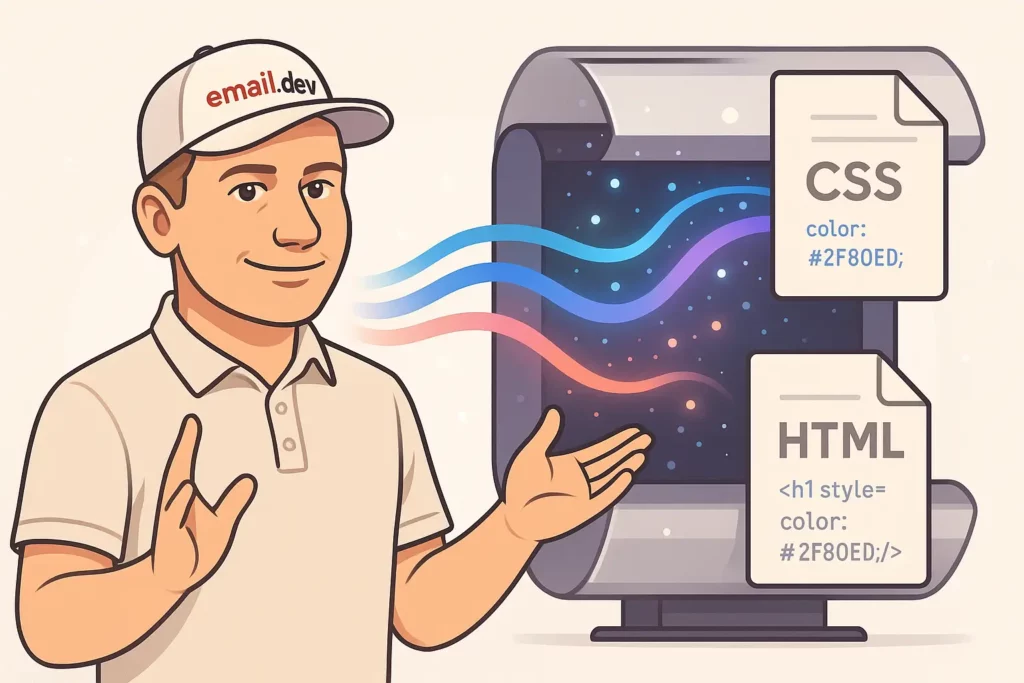
CSS inlining means taking styles out of a <style> block or external stylesheet and jamming them directly into the style="" attribute of each HTML element.
Instead of:
<style>
  .header {
    background-color: #0066cc;
    font-size: 24px;
  }
</style>
<div class="header">Welcome!</div>
You ship this:
<div style="background-color: #0066cc; font-size: 24px;">Welcome!</div>
Why bother? Because Gmail used to strip the entire <head> section. A lot of clients ignore half your CSS. And some clients treat your stylesheet like it’s going to summon a demon and delete the whole thing on sight.
Email clients don’t trust you. They assume you’re trying to break their interface or steal user data, so they strip out anything that looks potentially dangerous. Sometimes they strip out things that aren’t dangerous at all – because a parser decided it didn’t like your syntax that day.
Web developers who try email development for the first time tend to look slightly betrayed after their first round of cross-client testing. I remember feeling the same way around 2015. It gets better. Not a lot better, but better.
The technical reality (and what’s changing)
Classic Outlook for Windows – the desktop version you probably still see in corporate inboxes – uses Word’s rendering engine. Specifically, it’s been based on the Word 2007 rendering pipeline for the better part of two decades. No, that’s not a joke. That’s why it can’t handle:
- Background images (without VML hacks)
- Float properties
- Most of CSS3
- Any expectation that your code will “just work”
Here’s the part the article you read last year probably didn’t mention: Microsoft is ending support for those Word-based desktop Outlook versions in October 2026. The New Outlook for Windows – generally available since August 2024 – uses a modern Chromium-based web engine, basically the same thing as Outlook.com. Rendering is drastically better. Small and medium business users already hit the opt-out phase in January 2025; enterprise customers are in opt-out as of April 2026.
Does that mean you can throw out all your VML workarounds and ghost tables? Absolutely not. Classic Outlook sticks around through at least 2029 for organizations with perpetual licenses, and plenty of businesses will drag their feet. But it does mean you should stop treating “Outlook breaks everything” as a permanent condition. The floor is rising, slowly.
Gmail on mobile still strips selectors it doesn’t like. Apple Mail remains the one client that mostly just renders modern CSS, which is why designers love it and email developers treat it as the control group. Outlook for Mac runs on WebKit (Safari’s engine), Outlook.com on Blink (Chrome’s). And international clients – regional services across Asia, Europe, Latin America – have CSS support that ranges from “surprisingly decent” to “did anyone actually test this.”
Your subscribers use all of these. According to Litmus data from the last couple of years, mobile clients have hovered around 41.6% of opens, webmail around 40.6%, and desktop around 16.2% – though these numbers are noisy and shift by audience. B2B senders see more Outlook desktop. Consumer brands see more Gmail mobile. Everyone sees more Apple Mail than they think they do.
You can’t pick one client and optimize for it. You have to make it work everywhere, which means understanding what breaks and where.
What broken emails actually cost
Broken emails kill engagement. Not in a metaphorical way – in a “your click-through rate drops because nobody can find the button” way.
When someone opens your email and sees a layout that went through a blender, they don’t think “oh, that must be a rendering issue in my email client.” They think your company is sloppy. Maybe they unsubscribe. More often they just delete it and move on.
Mobile is worse. Per SaleCycle survey data that’s been floating around for years (and still getting cited), 42.3% of users delete emails that aren’t optimized for mobile. And “not optimized” doesn’t always mean the whole thing is broken. Sometimes it’s just text you can’t read without zooming, or a CTA cut off at the edge, or weird horizontal scroll that makes people give up.
None of this shows up in your metrics as “rendering failure.” It shows up as lower click-throughs, higher delete rates, worse conversions. You’ll never know exactly how many sales you lost because someone on Gmail Android saw your email as a garbled mess. But it’s more than you think.
The current state of CSS support in email clients

The 2026 email client landscape
The ecosystem keeps moving, and CSS inlining decisions have to keep up. About 75% of people say they use their smartphones most often to check email. Three in five consumers check email on the go.
Working numbers for market share that I keep coming back to:
- Mobile clients: ~41.6% of opens
- Webmail: ~40.6% of opens
- Desktop clients: ~16.2% of opens
The bigger shift, though, is which clients dominate. Apple (iPhone Mail, macOS Mail, and MPP-affected opens) sits around 51% globally these days. Gmail is in the mid-to-high 20s. Outlook desktop has been losing share steadily as the New Outlook rollout continues.
Mobile-first isn’t a style choice anymore. It’s the default assumption your CSS inlining strategy has to start from.
Which CSS properties actually need inlining
After more testing than I want to think about, these are the properties that should be inlined for reliable cross-client rendering:
Always inline:
colorandbackground-colorfont-family,font-size,font-weighttext-alignandline-heightpadding(margin is a crapshoot – more on that below)widthandheightfor layout-critical elementsborderproperties for Outlook compatibility
Fine to leave in a <style> block:
- Media queries (can’t be inlined anyway)
- Hover states and pseudo-selectors
- Complex selectors that don’t work inline to begin with
Don’t bother inlining:
@mediarules (physically impossible):hover,:focus, and the rest of the pseudo-class family- Descendant and child selectors like
.container > .child
Mistake #1: Over-relying on embedded CSS without strategic inlining

The problem: assuming modern CSS support everywhere
Gmail added support for embedded styles and media queries in September 2016. This was a genuinely huge deal at the time – people wrote blog posts, Kevin Mandeville did a whole Litmus webinar about it. And a lot of developers took that as permission to stop inlining. “If Gmail works and Apple Mail works, that covers most of my audience, right?”
Wrong, though. A few reasons.
First, not everyone uses the latest version of their client. Corporate IT shops still have Outlook 2016 in production. Regional clients in smaller markets update on their own schedule, which is to say they barely update. People keep old phones for a decade now.
Second, once your email gets forwarded, all bets are off. The forwarding client might strip styles the original preserved. Your email looks fine when it lands and completely wrecked when someone forwards it to their boss in a different client.
Third – and this one I actually only realized a couple years in – some accessibility tools and screen readers don’t fully process embedded styles. If your contrast rules only exist in the <style> block, users on assistive tech might end up with illegible text.
The “modern clients support embedded CSS” argument falls apart the second you test in more than about four clients.
The solution: hybrid CSS strategy
The thing that actually works is combining embedded and inline CSS. Not one or the other. Both.
<!DOCTYPE html>
<html>
<head>
    <style>
        /* Responsive and hover styles stay embedded */
        @media screen and (max-width: 600px) {
            .mobile-full { width: 100% !important; }
        }

        .button:hover { background-color: #003d7a !important; }
    </style>
</head>
<body>
    <!-- Critical styles inlined -->
    <table style="width: 600px; background-color: #ffffff; font-family: Arial, sans-serif;">
        <tr>
            <td style="padding: 20px; color: #333333; font-size: 16px;">
                <a href="#" class="button" style="display: inline-block; padding: 12px 24px; background-color: #0066cc; color: #ffffff; text-decoration: none; border-radius: 4px;">
                    Click here
                </a>
            </td>
        </tr>
    </table>
</body>
</html>
This way:
- Critical styling renders everywhere via inline CSS
- Responsive design and hover effects work in clients that support them
- When those enhancements get stripped, the base email still holds together
Implementation guidelines
Inline these:
- Base typography (font-family, font-size, color)
- Layout-critical dimensions (width, height on tables)
- Background colors
- Padding for spacing (margin is unreliable in email)
Keep these in <style>:
- Media queries
- Hover and focus states
- Complex selectors
- Anything that doesn’t work inline
Mistake #2: Inlining every single property like you’re being audited
The problem: bloated HTML and maintenance hell
Some developers overcorrect and inline every CSS property they can think of. Every padding value expanded. Every margin (even though margin barely works in email anyway). And every border property broken out into border-top, border-right, border-bottom, border-left, because why not.
Your HTML file swells to 300KB for what should be a basic promotional email.
Now there are three fresh problems:
- Gmail clips. Gmail crops emails that exceed 102KB in the rendered view, showing a “view entire message” link. That alone kills tracking pixels for some users and hurts your perceived deliverability. Bloated inline styles push you over that threshold fast.
- Nobody can maintain it. When your PM asks you to change the button color from blue to green, you have to find and replace that hex in 47 different places. You will miss three. Guaranteed.
- Mobile users on bad connections bail. A 300KB email on a spotty connection takes actual seconds to download. People don’t wait. They see a loading spinner, they’re gone.
The worst part is that most of those inlined properties aren’t even doing anything. You’ve added margin: 0; to elements that don’t have margin. border: none; on things that don’t have borders. It’s like packing your entire closet for a weekend trip because what if.
The solution: strategic property prioritization
Focus CSS inlining on the stuff that actually needs it:
<!-- BAD: over-inlined -->
<td style="width: 300px; max-width: 300px; min-width: 300px; height: auto; min-height: 50px; max-height: none; padding: 15px 20px 15px 20px; padding-top: 15px; padding-right: 20px; padding-bottom: 15px; padding-left: 20px; margin: 0; margin-top: 0; margin-right: 0; margin-bottom: 0; margin-left: 0; border: none; border-top: none; border-right: none; border-bottom: none; border-left: none; background-color: #ffffff; background-image: none; background-repeat: no-repeat; background-position: top left; color: #333333; font-family: Arial, sans-serif; font-size: 16px; font-weight: normal; font-style: normal; text-align: left; text-decoration: none; line-height: 1.5; letter-spacing: normal; word-spacing: normal;">
    Content here
</td>

<!-- GOOD: strategically inlined -->
<td style="padding: 15px 20px; background-color: #ffffff; color: #333333; font-family: Arial, sans-serif; font-size: 16px;">
    Content here
</td>
Priority-based inlining framework
High priority (always inline):
colorandbackground-colorfont-familyandfont-sizepadding(not margin)text-alignwidthfor table cells
Medium priority (inline for problem clients):
font-weightandline-heightborderpropertiesvertical-alignfor table cells
Low priority (usually leave in <style>):
marginproperties (unreliable in a lot of places anyway)text-decorationletter-spacing- Default values that aren’t overriding anything
Mistake #3: Ignoring client-specific CSS inlining requirements

The problem: the one-size-fits-all approach
A lot of developers apply the same CSS inlining strategy across every client, ignoring that different clients want different things. What you end up with:
- Outlook rendering failures from missing VML
- Gmail mobile app layout breaks from unsupported properties
- Apple Mail dark mode issues from color handling that wasn’t thought through
- International client problems from features nobody checked support for
The solution: client-aware CSS inlining
Use conditional comments where they help. Outlook respects <!--[if mso]> blocks; every other client ignores them. That’s the main lever you have for client-specific CSS inlining:
<!--[if mso]>
<td style="background-color: #f0f0f0; padding: 20px; font-family: Arial, sans-serif; font-size: 16px; color: #333333;">
<![endif]-->

<!--[if !mso]><!-->
<td style="background-color: #f0f0f0; padding: 20px;" class="modern-cell">
<!--<![endif]-->
    Content that works everywhere
<!--[if mso]>
</td>
<![endif]-->

<!--[if !mso]><!-->
</td>
<!--<![endif]-->
Yes, it’s ugly. Yes, you’ll get used to it. And yes, you can stop using it once classic Outlook’s audience share drops below whatever threshold you care about (I personally won’t retire it until I see classic Outlook under 5% of my audience, which is probably 2027 or later).
Client-specific inlining strategies
Classic Outlook desktop:
- Inline all background colors (background images need VML)
- Always inline font properties
- Inline table dimensions explicitly
- Use conditional comments for complex layouts
- Remember this client’s share will decline through 2026-2029
New Outlook for Windows and Outlook.com:
- Treat it like modern Chromium – way less aggressive inlining needed
- Background images actually work
- Most modern CSS is fine
- Still inline the basics for the hybrid approach
Gmail (web and mobile):
- Inline critical layout properties
- Keep complex selectors in
<style>tags - Inline color properties for text and backgrounds
- Be conservative with advanced CSS
Apple Mail:
- Less aggressive inlining is fine
- Focus on dark mode handling
- Inline what affects mobile rendering
- Lean on the solid CSS support for responsive features
International and legacy clients:
- Max inlining approach
- Avoid advanced CSS features
- Inline all typography and color
- Keep layouts to basic tables
Mistake #4: Media queries and inlined styles fighting each other

The problem: breaking responsive behavior
Media queries can’t be inlined. That’s a technical fact, not a stylistic preference. They only work inside <style> tags.
So when developers inline base styles without thinking about responsive overrides, they create situations where the mobile media query tries to change width: 600px; to width: 100%; – but can’t, because that 600px is locked into an inline style attribute, and inline CSS has higher specificity than anything in a style tag.
Unless you bolt !important onto your media query. Which works. But feels dirty and makes the CSS harder to debug six months later when you’re not sure which declaration is winning the specificity war.
The other mistake is inlining stuff that should only exist inside media queries. Your mobile font size override doesn’t need to be inlined. Your mobile padding doesn’t need to be inlined. Those are responsive-specific styles that only fire at certain breakpoints.
What you get is emails that look fine on desktop and wrecked on mobile, or vice versa. Sometimes both at the same time, which is genuinely impressive.
The solution: responsive-aware CSS inlining
Keep the base styles inlined, keep the responsive overrides in media queries:
<head>
    <style>
        /* Media queries stay in style tags */
        @media screen and (max-width: 600px) {
            .responsive-table { width: 100% !important; }
            .mobile-padding { padding: 10px !important; }
            .mobile-text { font-size: 18px !important; }
        }
    </style>
</head>
<body>
    <table class="responsive-table" style="width: 600px; background-color: #ffffff;" role="presentation">
        <tr>
            <td class="mobile-padding mobile-text" style="padding: 20px; font-size: 16px; color: #333333;">
                Content adapts to screen size
            </td>
        </tr>
    </table>
</body>
Best practices for responsive CSS inlining
Inline these for mobile:
- Base font sizes (with mobile overrides in media queries)
- Default padding (with responsive adjustments on top)
- Base table widths (with percentage overrides)
- Default text alignment
Don’t inline – keep in media queries:
- Responsive width percentages
- Mobile-specific padding adjustments
- Font size changes for mobile
- Display property changes
Use !important strategically:
@media screen and (max-width: 600px) {
    .mobile-override {
        width: 100% !important;
        font-size: 18px !important;
    }
}
The !important is how you make media query styles beat inlined properties at the specificity game. Not elegant. Necessary.
Mistake #5: Manual CSS inlining without automation tools

The problem: human error and inefficiency
Stop inlining CSS by hand. I know why you’re doing it – feels more controlled, you don’t want to learn a new tool, your workflow doesn’t have a build step yet. I get it. Do it anyway.
Manual inlining is where mistakes hide. You’ll miss a property. You’ll typo a hex. And you will inline the wrong value and not notice until someone tests it in Outlook three days later. Every single email you hand-inline is another opportunity to mess something up, and eventually you will.
Automated inlining tools do the same thing every time. They don’t get tired. Don’t skip steps. And don’t decide “eh, this one probably doesn’t need it” based on how tired you are at 11pm.
The tool doesn’t matter as much as having a tool. Premailer if you want open-source and configurable. Juice for Node-based projects. The Mailchimp ESP handles it automatically if you’re sending through them. Litmus Builder or Sinch Email on Acid if you want the full professional setup with testing baked in.
Pick one. Bake it into your build. Your workflow should be: write email with external CSS → pipe through inliner → test output → ship. Not: write email → manually copy styles one at a time → forget three → send → find out when someone complains.
The solution: an automated CSS inlining pipeline
Here’s the basic idea with Gulp and Juice (gulp-premailer exists but hasn’t been meaningfully maintained in years – I learned this the hard way after a deprecated dependency broke a build pipeline in 2023):
const gulp = require('gulp');
const inlineCss = require('gulp-inline-css');

gulp.task('inline-css', function() {
    return gulp.src('templates/*.html')
        .pipe(inlineCss({
            applyStyleTags: true,
            applyLinkTags: true,
            removeStyleTags: false,
            preserveMediaQueries: true
        }))
        .pipe(gulp.dest('dist/'));
});
Top CSS inlining tools worth using in 2026
Professional-grade:
- Litmus Builder – the standard for a reason
- Real-time preview across 90+ clients
- Automated inlining with a toggle
- ESP sync for deployment
- Premailer – open source, battle-tested
- Preserves media queries by default
- Configurable inlining rules
- Plays nice with most build systems
- Juice – the Node.js option
- Drop-in for JavaScript builds
- Powers a bunch of other inliner wrappers
- Actively maintained
Platform-integrated:
- Mailchimp CSS Inliner – works if you’re sending through Mailchimp, toggled on in the email settings. The old standalone web tool (
beaker.mailchimp.com/inline-css) that everyone used to bookmark is long gone. Don’t let anyone tell you otherwise, that ship sailed a while ago. - Sinch Email on Acid – testing platform with inliner built in, plus accessibility and dark mode validation
Build system example:
{
  "scripts": {
    "build": "gulp inline-css && gulp test-emails",
    "dev": "gulp watch-templates"
  },
  "devDependencies": {
    "gulp": "^4.0.2",
    "gulp-inline-css": "^3.5.0",
    "juice": "^10.0.0"
  }
}
Advanced automation
Template-based workflow:
- Write emails with external CSS during design
- Run automated inlining during build
- Test inlined output in target clients
- Deploy with some actual confidence
Example GitHub Actions pass:
name: Email build and test
on: [push]
jobs:
  build:
    runs-on: ubuntu-latest
    steps:
      - uses: actions/checkout@v4
      - name: Install dependencies
        run: npm install
      - name: Inline CSS
        run: npm run inline-css
      - name: Test email rendering
        run: npm run test-litmus
The strategic CSS inlining framework for 2026
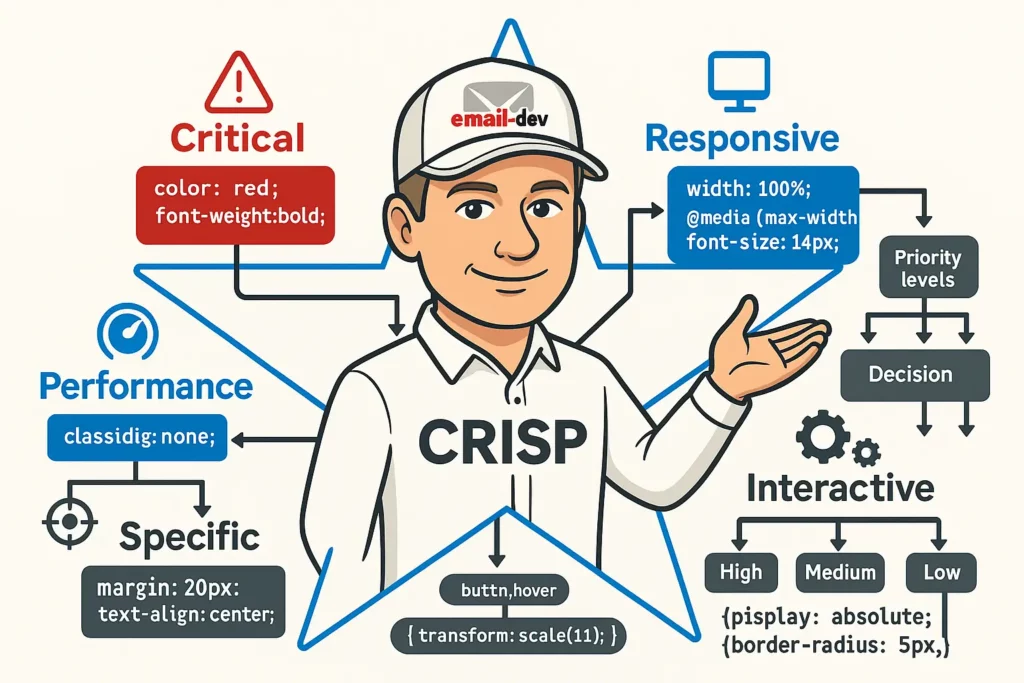
The CRISP method for CSS inlining
A framework I’ve been using (stole the acronym from a teammate years ago, not sure where they got it):
C – Critical: inline what’s essential for basic rendering R – Responsive: keep responsive styles in media queries, inline the base values I – Interactive: hover and focus states stay in style tags S – Specific: use client-specific conditional inlining where it earns its keep P – Performance: balance file size against compatibility
Decision matrix for CSS properties
| Property | Inline priority | Reasoning |
|---|---|---|
color | High | Essential for readability, widely stripped from style tags |
background-color | High | Critical for visual hierarchy, often stripped |
font-family | High | Typography fallbacks essential for brand consistency |
font-size | Medium | Important, but often overridden by media queries |
padding | Medium | Layout-critical, and margin is unreliable anyway |
width (tables) | High | Essential for layout structure |
border | Medium | Matters for Outlook compatibility |
text-align | Medium | Layout-critical, but well-supported in style tags |
line-height | Low | Decent fallback support, can stay in style tags |
margin | Avoid | Unreliable – use padding instead |
Implementation workflow
1: analysis
- Pull your actual subscriber client mix (ESP analytics or Litmus)
- Identify the 3-5 clients that matter most for your audience
- Document what each priority client actually needs
2: strategy
<table style="width: 600px; background-color: #ffffff; font-family: Arial, sans-serif;" class="main-table">
    <tr>
        <td style="padding: 20px; color: #333333; font-size: 16px;" class="content-cell">
            <h1 style="color: #0066cc; font-size: 28px;">Strategic inlining</h1>
            <p style="line-height: 1.6;">Content with sensible inlining balance.</p>
        </td>
    </tr>
</table>
3: testing and tuning
- Automate rendering validation
- Track the file size impact of your inlining choices
- A/B test engagement when you make big strategy changes
Essential CSS inlining tools and technologies

Professional email development platforms
Litmus Builder: still the benchmark for professional email dev
- Automated CSS inlining with intelligent property detection
- Real-time testing across 90+ clients
- ESP integration for deployment
- Team collaboration features that actually work
Sinch Email on Acid: comprehensive testing suite
- Inlining integrated with testing
- Accessibility checking and dark mode validation
- Campaign analytics
Open source and free tools
Premailer: rock-solid open-source CSS inlining
premailer input.html --mode html --base-url https://example.com
Juice: Node.js CSS inlining library
const juice = require('juice');
const inlined = juice(htmlString, {
    preserveMediaQueries: true,
    removeStyleTags: false
});
Build system integration
Webpack setup:
const HtmlWebpackPlugin = require('html-webpack-plugin');

module.exports = {
  plugins: [
    new HtmlWebpackPlugin({
      template: 'src/email-template.html'
    })
  ]
};
Then run Juice against the output as a post-build step rather than leaning on a deprecated Webpack plugin.
Gulp workflow:
const gulp = require('gulp');
const inlineCss = require('gulp-inline-css');

gulp.task('emails', function() {
    return gulp.src('src/*.html')
        .pipe(inlineCss({
            applyStyleTags: true,
            applyLinkTags: true,
            removeStyleTags: false,
            preserveMediaQueries: true
        }))
        .pipe(gulp.dest('dist/'));
});
Testing and quality assurance for inlined CSS
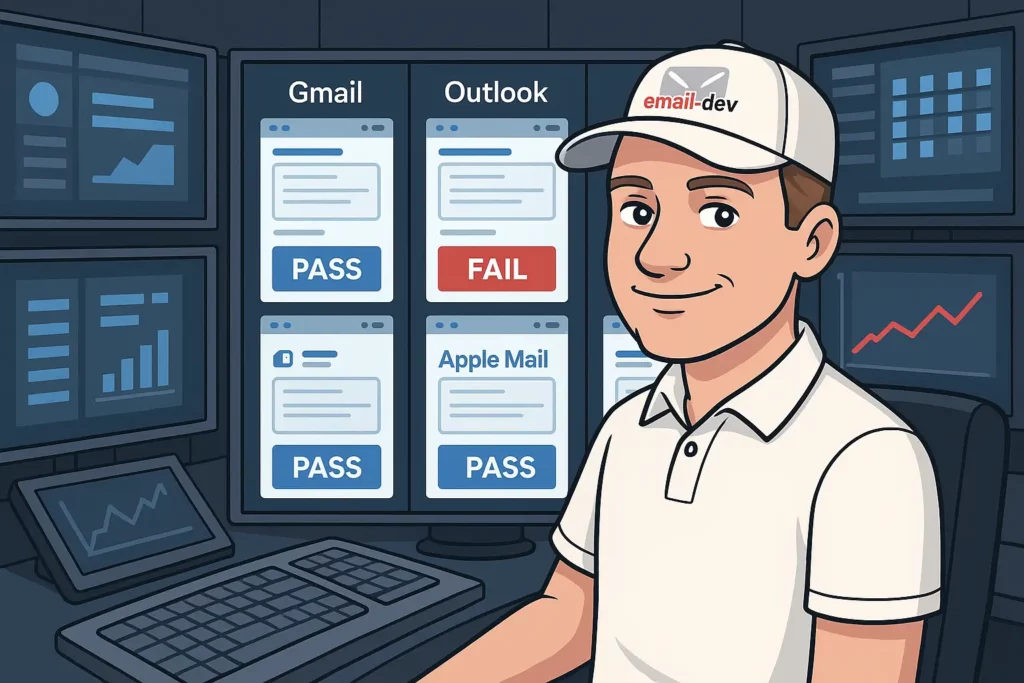
Pre-send testing checklist
- Critical styles render correctly in classic Outlook (2016/2019/2021) – while it still matters
- New Outlook for Windows renders the Chromium-friendly version cleanly
- Mobile layout holds up in the Gmail mobile app
- Dark mode appearance is acceptable in Apple Mail
- Text stays readable in high-contrast mode
- File size stays under 100KB for optimal deliverability and to avoid Gmail clipping
Email client testing priorities
Based on current market share, your testing time is best spent on:
- Gmail (mobile app) – ~30% of opens for most B2C audiences
- Apple Mail (iOS) – ~25% of opens
- Outlook (classic + New, both) – ~15% combined
- Gmail (web) – ~10%
- Apple Mail (desktop) – ~8%
Your actual breakdown may differ. B2B senders see more Outlook. Older audiences skew harder toward desktop. Look at your own analytics.
Automated testing implementation
const EmailTester = require('email-testing-suite');

async function testInlinedEmails() {
    const templates = await loadTemplates('dist/*.html');

    for (const template of templates) {
        const results = await EmailTester.test(template, {
            clients: ['gmail', 'outlook2019', 'apple-mail', 'outlook-mobile', 'new-outlook'],
            checks: ['css-support', 'responsive', 'accessibility']
        });

        console.log(`Template ${template.name}: ${results.score}/100`);
    }
}
Performance testing
File size checks:
du -h original-template.html inlined-template.html
# Target: under 100KB for deliverability
Load time:
- Test on throttled connections
- Time the rendering in each target client
- Keep an eye on image sizes and overall CSS complexity
Advanced CSS inlining techniques
Conditional inlining strategies
Client-specific property handling:
<!--[if mso]>
<td style="background-color: #f0f0f0; padding: 20px; font-family: Arial, sans-serif;">
<![endif]-->

<!--[if !mso]><!-->
<td style="background: linear-gradient(to bottom, #f0f0f0, #e0e0e0); padding: 20px;" class="gradient-bg">
<!--<![endif]-->
    Content with different styling for different clients
<!--[if mso]>
</td>
<![endif]-->

<!--[if !mso]><!-->
</td>
<!--<![endif]-->
Side note: the New Outlook for Windows doesn’t respect these MSO conditional comments the way classic Outlook does, because it’s no longer running the Word engine. That’s a quiet win – your gradient example above will actually render in the New Outlook without needing a fallback.
Dynamic CSS inlining
Template-based approach:
const inlineTemplate = (template, options) => {
    const criticalProperties = options.clientType === 'outlook-classic'
        ? ['background-color', 'font-family', 'font-size', 'color', 'padding', 'width']
        : ['background-color', 'font-family', 'color'];

    return inlineCss(template, {
        inlineProperties: criticalProperties,
        preserveMediaQueries: true
    });
};
CSS property prioritization algorithm
const prioritizeInlining = (property, clientSupport) => {
    const priorities = {
        'color': 1,                    // Always inline
        'background-color': 1,         // Always inline
        'font-family': 1,              // Always inline
        'font-size': 2,                // Usually inline
        'padding': 2,                  // Usually inline
        'line-height': 3,              // Sometimes inline
        'text-decoration': 4,          // Rarely inline
        'margin': 5                    // Avoid
    };

    const supportScore = clientSupport[property] || 0;
    return priorities[property] * supportScore;
};
Performance-optimized inlining
<table style="width: 600px; background-color: #ffffff;">
    <tr>
        <td style="padding: 20px; color: #333333;">
            <h1 style="color: #0066cc; font-size: 28px;">Title</h1>
            <p style="line-height: 1.6;">Content with minimal inlining</p>
        </td>
    </tr>
</table>
Future-proofing your CSS inlining strategy

Where email clients are heading
The big shift right now is the New Outlook for Windows transition, which basically eliminates one of the three biggest CSS inlining headaches of the last decade. Once VML workarounds and MSO conditionals stop being necessary for the majority of your Outlook audience, a lot of the inlining rituals you’ve built up become optional. Not gone – classic Outlook sticks around for years – but optional.
Strategies that will age well:
- Progressive enhancement: base functionality via inlined CSS, enhancements via embedded styles
- Client detection: adjust inlining based on actual subscriber data
- Responsive-first design: mobile is the default, not a special case
2026 CSS inlining best practices
Hybrid is still the answer. The future isn’t “stop inlining” or “inline everything.” It’s intelligent hybrid strategies that pair inline CSS reliability with embedded style efficiency.
Automation wins. Manual CSS inlining is becoming a liability as build processes and AI-assisted tools handle optimization automatically. If you’re still doing it by hand in 2026, I have bad news.
Performance matters more than it used to. Gmail’s 102KB clipping threshold, mobile bandwidth constraints, and ESP size limits all push toward leaner output.
Technology recommendations
A reasonable dev stack for 2026:
{
  "css-inlining": {
    "primary": "juice",
    "fallback": "premailer",
    "testing": "litmus-api"
  },
  "build-process": {
    "bundler": "webpack or vite",
    "task-runner": "gulp or npm scripts",
    "testing": "jest + puppeteer"
  },
  "quality-assurance": {
    "rendering": "email-on-acid-api",
    "accessibility": "axe-core",
    "performance": "lighthouse"
  }
}
Skills development roadmap
Core competencies for email developers:
- CSS specificity: understanding how inline styles interact with embedded CSS
- Email client architecture: rendering engines, their limits, and where they’re going
- Automation tools: build systems and CSS processing pipelines
- Testing methodology: systematic cross-client validation
- Performance optimization: balancing functionality with size and speed
Mastering CSS inlining for email success

CSS inlining is one of the most critical – and most misunderstood – parts of professional email development. The five mistakes in this piece (leaning on embedded CSS, inlining everything, ignoring client specifics, wrecking responsive behavior, manual processing) are quietly costing the industry real money in lost conversions.
The answer isn’t abandoning CSS inlining. It isn’t inlining everything out of fear. The email developers who do well in 2026 are the ones treating CSS inlining as a strategic discipline:
Prioritize critical properties. Focus inlining on the CSS that genuinely needs it for cross-client compatibility – colors, typography, layout-critical dimensions.
Automate everything. Use real tools and build processes to eliminate human error and keep your output consistent across campaigns.
Account for client diversity. Conditional strategies for different clients, without sacrificing overall efficiency.
Preserve responsive functionality. Base styles inlined, media query overrides in the head.
Balance performance and compatibility. Make informed decisions based on your audience and their actual client mix.
Email still delivers the highest ROI of any digital marketing channel – commonly cited at $36 for every $1 spent, with top-performing verticals hitting $40-50. At those margins, the technical quality of your rendering is a business input, not just a craft concern. Mobile dominates opens. Non-mobile-optimized emails get deleted at rates around 42% (per SaleCycle’s oft-cited consumer survey). CSS inlining isn’t a technicality. It’s a lever.
The developers winning at email in 2026 understand that CSS inlining isn’t binary. It’s a nuanced practice that requires knowing your audience, using the right tools, and running systematic processes that produce consistent, professional results across every client where your emails land.
Avoid these five mistakes, implement the strategic frameworks above, and you’ll see it in your metrics – rendering quality, workflow speed, and ultimately engagement and conversions.
Every broken email that reaches a subscriber’s inbox is a missed chance to build trust and drive revenue. In a world where people get hundreds of emails a week, the brands investing in technical excellence are the ones that stand out.
Take action: implement your CSS inlining strategy today
CSS inlining in email is weird because email itself is weird. You’re writing HTML that renders across 40+ environments, none of which agree on what CSS they support, and some of which are actively hostile to modern web standards. That’s improving – the October 2026 classic Outlook deprecation is the biggest rendering shift in a decade – but slowly.
Inline your colors. And your typography. And inline your layout widths. Keep media queries in style tags. Don’t inline everything “just to be safe.” Don’t assume embedded CSS works everywhere because it happens to work in Gmail.
Test your emails in at least five clients before you send to anyone real. Use automated tools so you’re not doing this manually every single time. And when something breaks in a client you’ve never heard of, don’t be surprised – figure out what property caused it, fix it, move on.
Email development isn’t web development. The rules are different, the constraints are tighter, the clients are less forgiving. But once you know which properties need inlining and which ones don’t, you can ship emails that work everywhere without losing your mind.
Most email developers learn this through years of trial and error. You just got the shortcut.
About the author: Paul I. is an email developer specializing in cross-client HTML email layout, dark mode, and advanced testing workflows with Litmus and Sinch Email on Acid. This guide draws on current email development practice, data from Litmus, Sinch Email on Acid, Campaign Monitor, and Google’s own Gmail developer documentation.
Additional resources:
- Litmus email client market share data
- Can I Email – CSS support reference
- Campaign Monitor CSS support guide
- Sinch Email on Acid testing platform
- Microsoft’s New Outlook for Windows transition documentation